Areas, deductions and volumes
Measure floor, ceiling and roof areas, cut out voids, set a roof's pitch, and turn an area into a volume.
- Choose an area item, or press A.
- Click each corner.
- Click the first point again (the tag by the cursor says End), use Close shape, or press Enter, to close it.
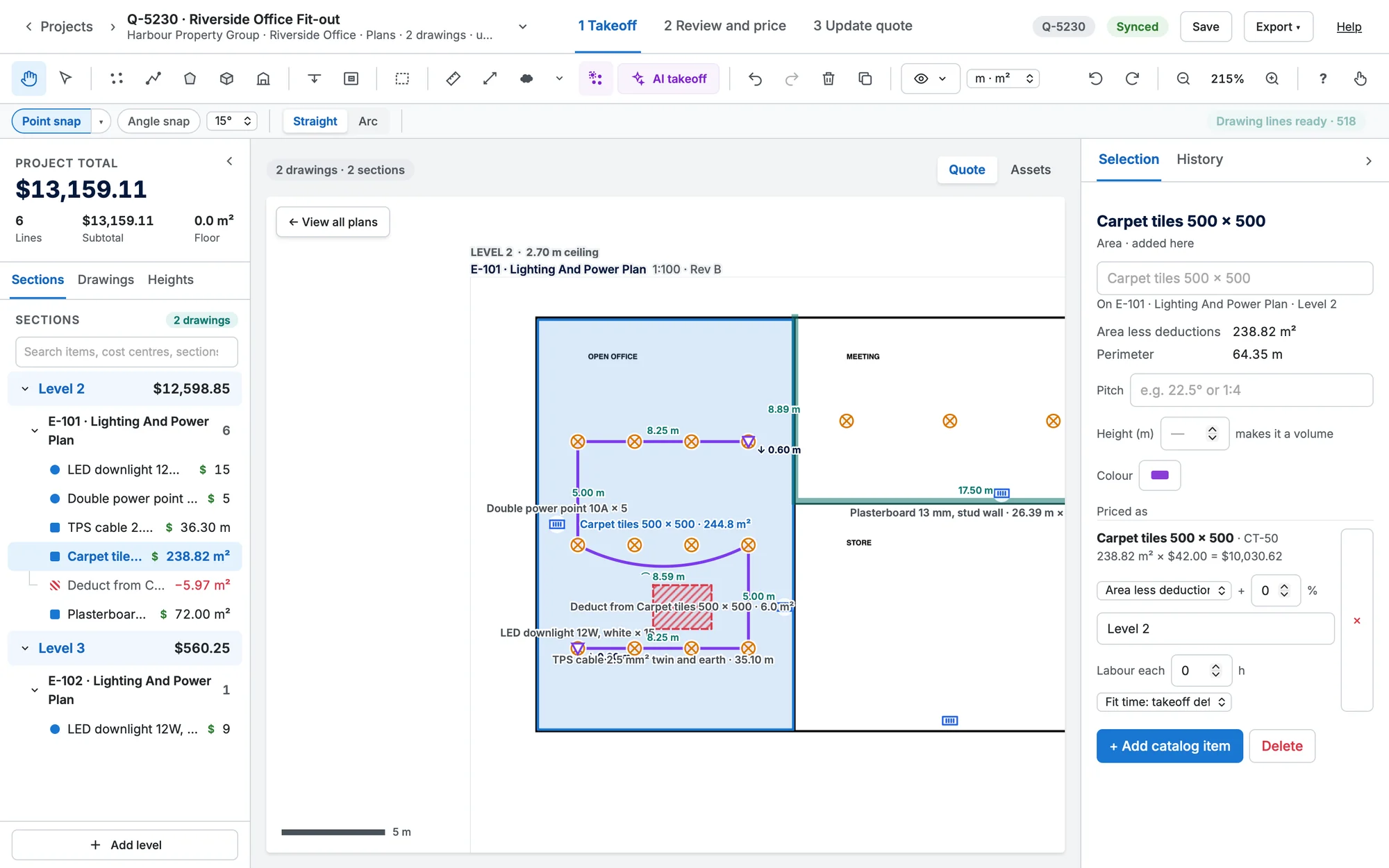
Deductions
Press X and draw inside an area (or volume) to cut out a void or opening. It's drawn red and hatched, the area shows "less deductions", and it moves, copies and deletes with its area. Close it on its first point like an area. A deduction drawn over a room, a wall or bare paper isn't kept: the board says to draw it inside the area or volume it comes out of.
Pitched areas (roofs)
Draw a roof plane as it appears on the plan, then type its Pitch in Selection: degrees (22.5), rise:run (1:4) or a grade (30%). Its quantity becomes the plan area ÷ cos(pitch): a 10 m × 8 m plane at 22.5° is 86.59 m². Selection shows both, e.g. Plan 80 m² · sloped 86.59 m², and the board labels the mark 22.5°.
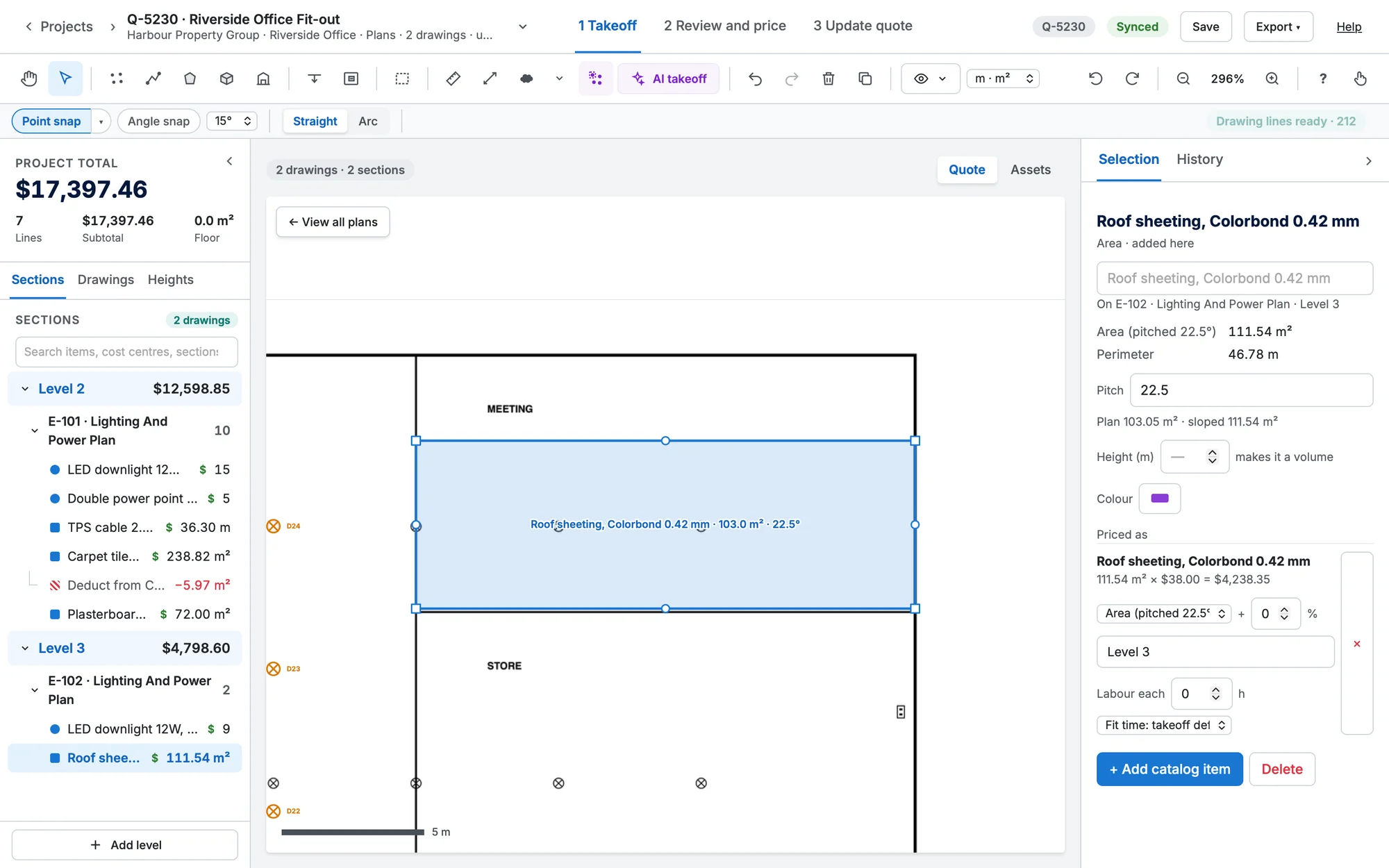
- Deductions inside a pitched area are on the same slope.
- Set the pitch on the item's style (right-click one of its marks → Edit item style…) so every area of a "Roof sheeting" item is pitched. A mark's own pitch wins; type 0 to make one mark flat.
- Selection notes "pitched" on the mark, the PDF legend says (pitched), and the quantities download has a Pitch column.
Volumes
Press U to draw a volume: area × height. The height comes from the mark, else the item, else the room, else the section. To turn an area into a volume, give it a Height in Selection; Make it an area (no height) turns it back.