Snap to the drawing's lines
Clicks land exactly on the plan's own walls and corners, not near them.
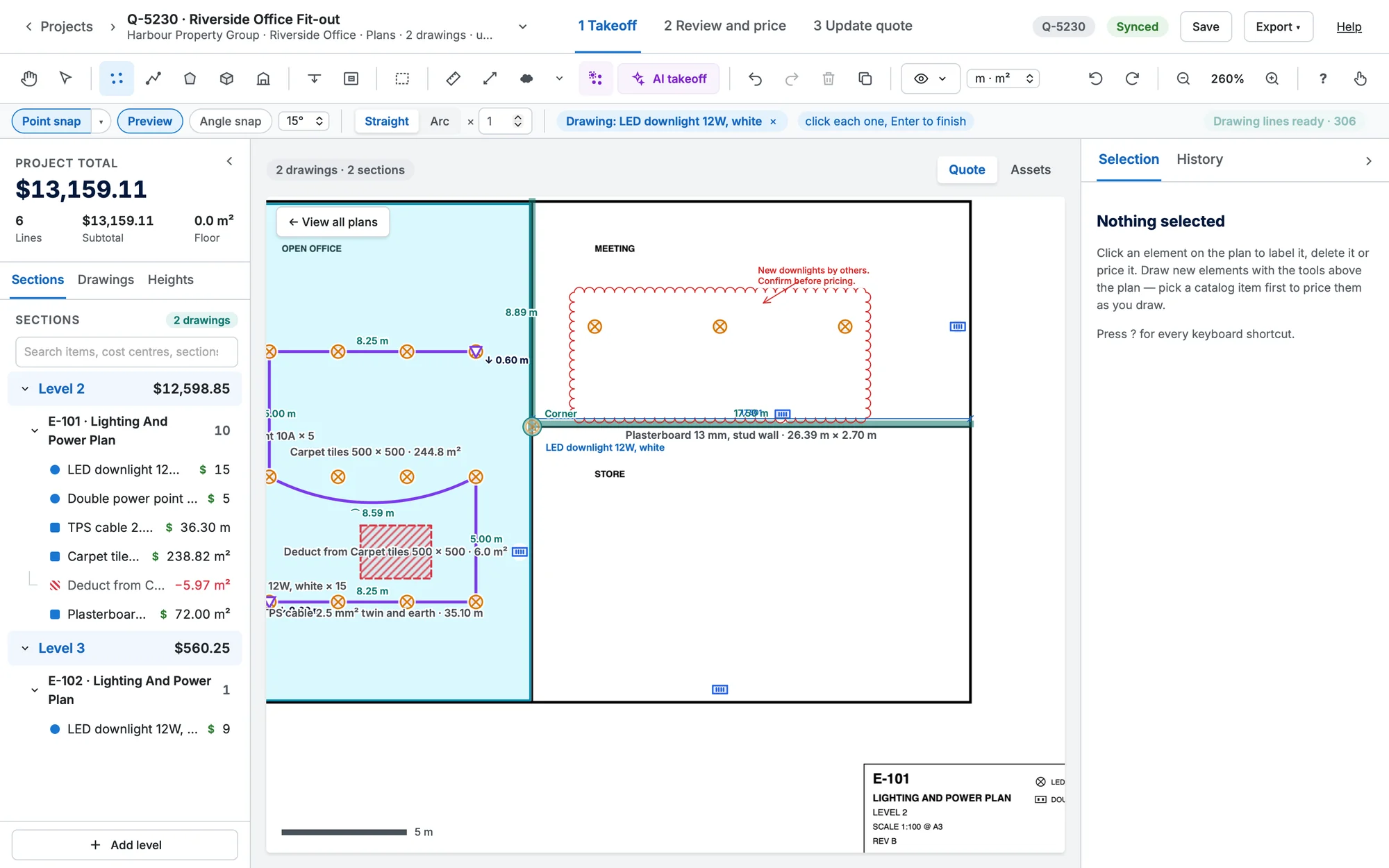
With Point snap on (it is by default), the pointer snaps to what's under it: your own marks, and the lines of the PDF itself. Click near a room's corner and the point lands on the corner. The area, length or count is then exact.
What it snaps to
| Tag on screen | What it found | Priority |
|---|---|---|
| Corner | Where two lines of the plan cross or meet at an angle. | First |
| End | The free end of a line (or where two lines carry on straight). | Second |
| Mid | The middle of a line. | Third |
| On PDF line | The nearest point on a line. | Last |
It looks within 10 pixels of the pointer (larger with a finger). The marker is a teal ring with a shape inside it (a square for a corner, a dot for an end, a triangle for a middle, a cross for a line) and a tag naming what it found. Your own marks win when one is as close as the plan's line, so the end of a run still joins another run.
Where it works
Every drawing tool: Count, Length, Area, Volume, Top wall area, Room, Deduct, Ruler, Scale, and the Dimension, Arrow and Cloud markups. The Pen and Highlighter don't snap. Hold Alt while you click to skip snapping for that click.
Choose what snaps
The ▾ beside Point snap (or Alt P) opens a small menu with two ticks: Marks (your marks and a scan's walls) and Drawing (the plan's lines). Both are on by default. P turns snapping off and on altogether, and your choice of the two is kept on this computer.
Getting ready
The first time a vector PDF sheet is on screen, Takeoffs reads its lines in the background so the board stays smooth. A small note at the right of the options row shows how it's going:
| Note | Meaning |
|---|---|
| Reading drawing lines… 62% | Working. Until it's done only your marks snap; carry on drawing. |
| Drawing lines ready · 28,412 | Done, with how many lines were kept. It fades after a few seconds. |
| Scanned plan · marks only | The sheet is a picture (a scan or photo), so it has no lines to snap to. Your marks still snap. |
| Drawing lines unavailable | The sheet couldn't be read, or has too many lines. Retry tries again. |
What was read is kept on this computer, so opening the takeoff again, or another one with the same plan, doesn't read it again.
What it ignores
- Light grey lines and fills (hatching, shading, paper colour), text, very short pieces and dense hatching aren't targets, so the pointer doesn't jump about on them.
- Only straight and curved lines drawn as vectors are used. A sheet cropped or whited out in Takeoffs still snaps to the lines underneath for now.
See it before you click
When you count, Preview (Y) shows the symbol where the click will land, snapped. See Count items.