Set a drawing's scale
Lengths and areas come from each drawing's scale. Set it by ratio, or by measuring something you know.
A drawing without a scale says No scale — counts only. You can still count on it, but lengths and areas wait for a scale. Click N without a scale — set it above the plan, Scale… on the drawing, or press K.
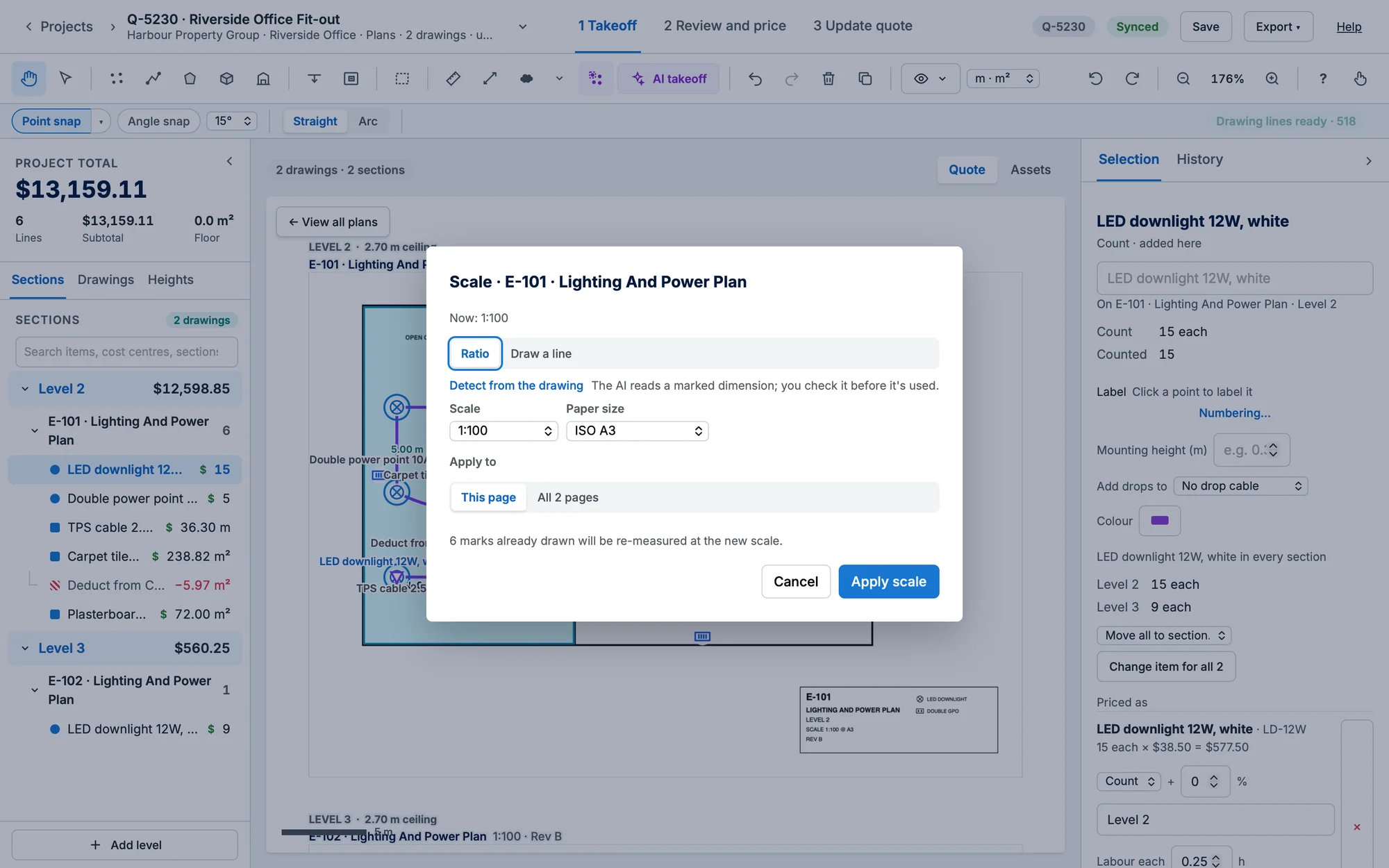
By ratio
- Choose Ratio, then the scale (1:50, 1:100, 1/4" = 1'-0" and so on, or Other 1:n…).
- Check the paper size. A PDF uses its own page size; an image needs you to choose one.
- Choose This page or All N pages, then Apply scale.
By a known length
- Choose Draw a line, then Draw the line on the plan.
- Click both ends of something whose real length you know: a dimension line, a door, a grid spacing.
- Type the real length and its units. The dialog shows what that works out to ("Works out to about 1:N"). Then Apply scale.
Detect from the drawing
Let the AI find the scale for you. Click Detect from the drawing in the Scale dialog. The AI reads a marked dimension, a room-size label or a written scale.
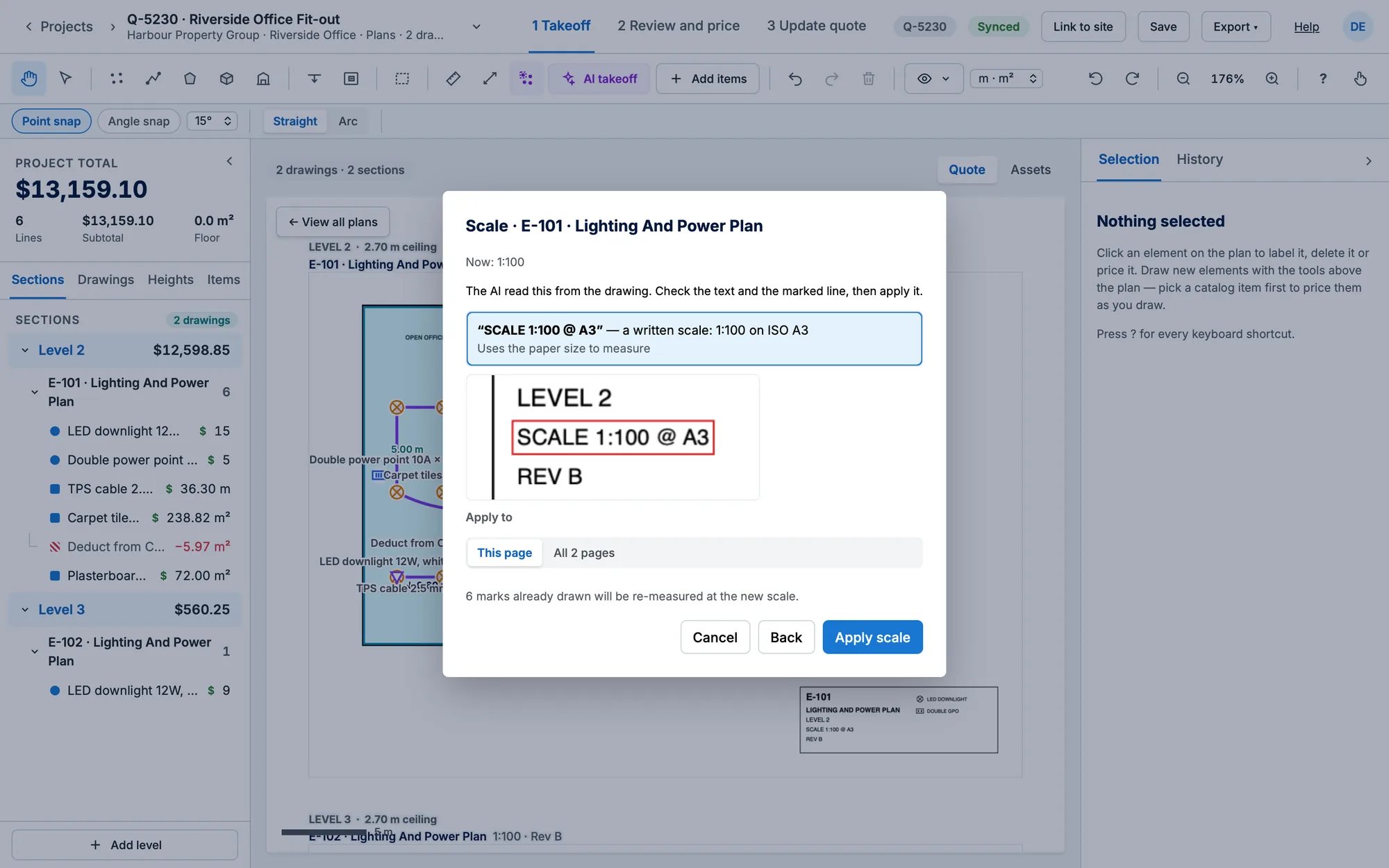
- Check each reading the AI lists: the text it read, in quotes, and the length it measured ("between the ends of the dimension line", or "a room size: … between its walls"). Below it, "Works out to about 1:N", and "Agrees with N other measurements" when readings back each other up.
- Click a reading to see a crop of the drawing with its line marked in red.
- Pick the right one, then Apply scale. Back returns to the dialog.
- Nothing is set until you apply it.
- If nothing is found, the dialog says "No marked dimension or written scale was found on this drawing." Click Draw a line instead.
- This is an AI feature, so it needs AI set up on the server.
Changing a scale re-measures everything already drawn on that drawing.
You can also set the scale while starting a project, in the Sheets and scale step: see Start a takeoff from plans.