iPad and Apple Pencil
Touch view gives bigger controls, gestures and an action bar. The Pencil draws while fingers move the plan.
Touch view turns on by itself on tablets and phones. Switch between touch view and desktop view with T or the touch button (right of ?): it shows a hand to switch to touch view, and a monitor, Desktop view, to switch back. (The Hand at the start of the toolbar is a different tool, for panning.) The side panels become drawers you open from the toolbar: the left one has sections, drawings and heights, and the right one has Selection and History. An action bar appears on the plan.
| Gesture | What it does |
|---|---|
| Tap | Select, or add a point. |
| Double-tap | Finish a shape, zoom in, or delete a point. |
| Long-press | The menu for a mark, the plan, or the shape you're drawing. |
| One-finger drag | Pan (or move a selected mark). Box selection needs Multi-select on. |
| Pinch | Zoom. |
| Two-finger tap | Undo. |
The action bar
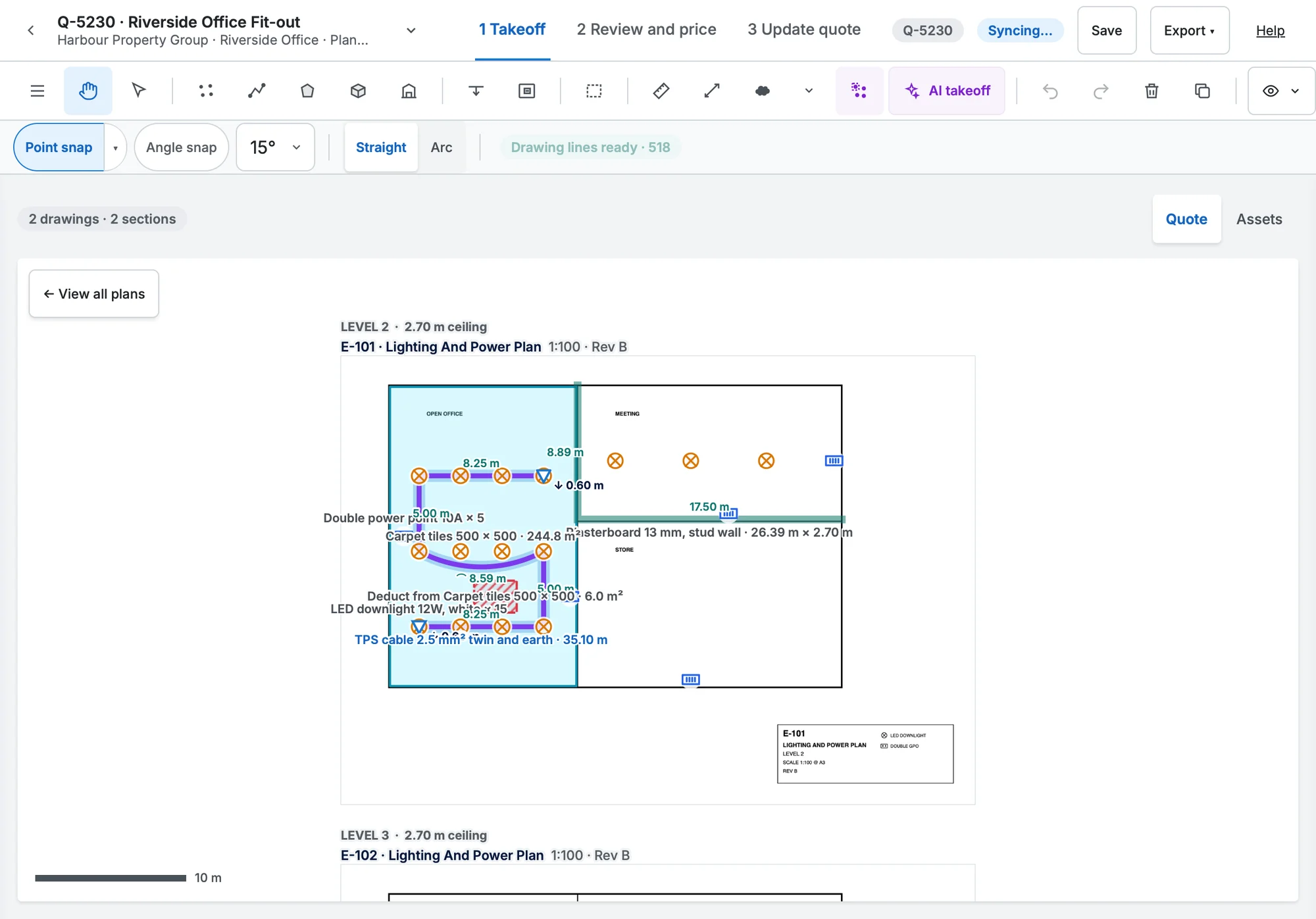
While drawing: Undo point, Close shape, Finish, Cancel, Snap, the angle step and Arc. With a selection: Delete, Duplicate, Copy, Paste, Hide, More…, Multi-select and Done.
Apple Pencil
The first time you use a Pencil, Pencil only turns on: the Pencil draws and your fingers pan and zoom. The pencil button in the toolbar switches it off so fingers draw too.
The same goes for the markup tools: with Pencil only on, the Pencil writes with Pen and Highlighter while a finger pans, and with it off a finger draws too. See Markup. The symbol preview shows while you drag a placement cursor, and the point lands where you lift.