As-Built drawings and Asset Plans
Record what was installed, then tie each asset to a Simpro site asset.
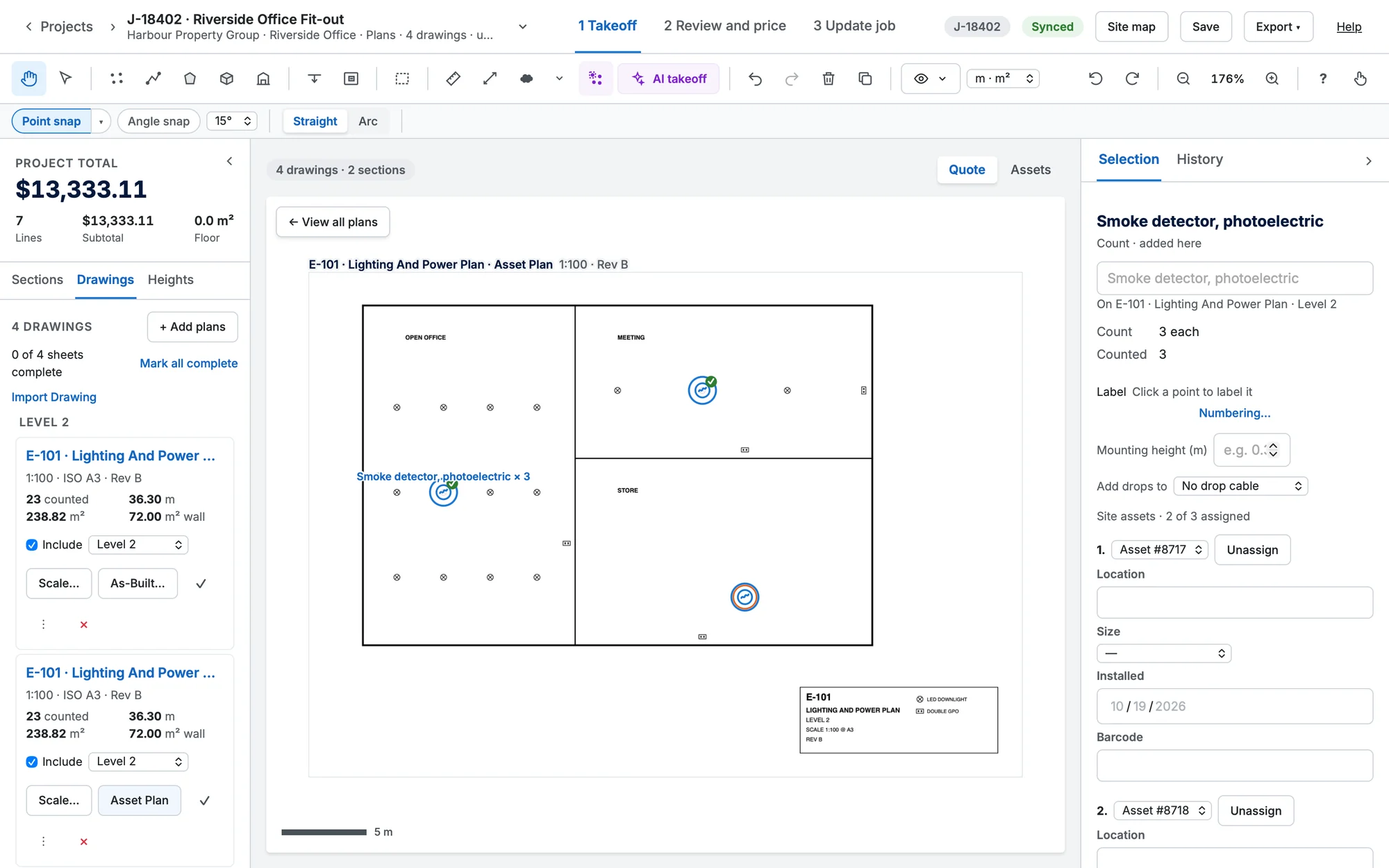
- On a job, click As-Built… on a takeoff sheet in the Drawings tab. Start empty, or Copy the marks to adjust them to what was installed.
- On the As-Built, click Asset Plan. It takes only the asset items (catalogue items set up as assets in Simpro).
- Select an asset count. For each point choose Create new or Match existing…, then fill in the asset's fields.
- Or right-click an asset count → Assign all N to step through every point.
- As-Built and Asset Plan sheets never add lines to the quote or job.
- Marking an As-Built complete (✓) sends its PDF to the job.
- Export ▾ → Asset summary PDF… downloads or sends the plan with a key of assets.
Assets from a quote
You don't have to wait for the job. On a quote's takeoff, a count or a placed item can become a Simpro asset as soon as you place it: answer Yes to Turn this into an asset?, or right-click it → Convert to Asset…. The asset is created on the quote's site, one for the item however many you counted, and the count shows its Simpro number. See Count items.