Items, templates and styles
Add the items you'll measure, from the catalogue, pre-builds, take-off templates or as one-offs, and style how they look.
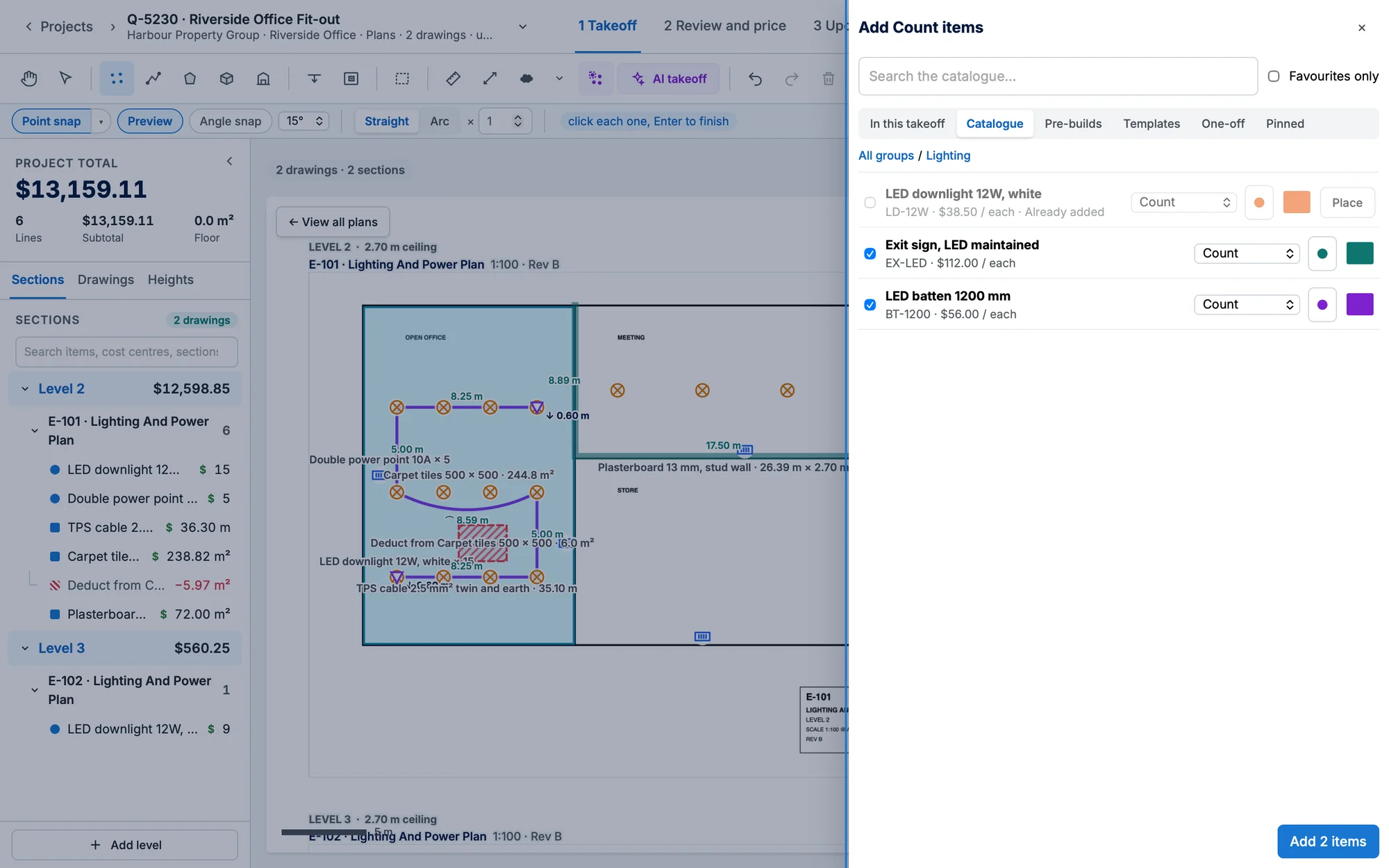
Choose a measuring tool (Count, Length, Area, Volume or Top wall area) with no item and the Add items panel opens on the right, for that type. In this takeoff lists the takeoff's items of that type with how much is drawn: click one and the next click on the plan places it. To draw now and price the marks later, close the panel (✕ or Esc): the tool stays chosen.
Each mark you place goes into Sections under its section and sheet, and that row opens and scrolls into view.
- Right-click a mark: Edit item style…, Pin item / Unpin item, Numbering… (counts; with its Number all, Renumber and other actions once set) and Change item… are in the menu. To hide marks, select them and press H.
- On an Asset Plan, right-click an asset count for Assign all N. The Selection panel prices each mark and can swap its catalogue item.
- On a quote, right-click a count or a placed item → Convert to Asset… to make it a Simpro asset on the quote's site (see Count items). An item that's an asset in your catalogue has its Asset Template chosen for you.
Add items
The panel's other tabs add new items: Catalogue, Pre-builds, Templates, One-off and Pinned (your pins of that type). The search box at the top searches the tab you're on (Search the catalogue… on the Catalogue) by name or part number (press Enter). Tick what you need, set each one's type and colour (and for a count, its symbol: the symbol button beside the colour), then Add N items. New items start as the type of the tool you chose; change it in the row if you need to.
The panel closes with the first new item ready to place, and a note says how ("Click the plan where each … goes."). An item that's already in the takeoff says Already added: Place draws it.
- Templates: your Simpro take-off templates. Add all adds the kit in one go; Save to template keeps your types and styles for everyone who uses it.
- One-off: a line that isn't in the catalogue. Later, right-click its marks → Change item… to swap it for a catalogue item.
- Pin item the items you use most (right-click a mark → Pin item): pins follow you to every takeoff, and keys 1–9 arm the first nine.
Styles and symbols
Right-click one of an item's marks → Edit item style… sets how the item looks: a count's symbol (from the System or Company library), size and colour; a run's colour, width, line pattern, default drop, wastage and pitch; an area's outline, fill and pitch. Tick Use this style in every takeoff (company style) to share it.
Labour and fit time
Each priced line in Selection has Labour each and a Fit time from Simpro. Apply to all N of this item sets it once for every mark of that item.