Count labels and numbering
Give each counted point a name or number (D1, D2… or SD-012), numbered for you as you place them.
A label is a short name on one counted point, up to 24 characters. It prints beside the symbol on the board and in the exported PDF, so the plan can be checked against a device schedule and an installer can read it.
Number as you place
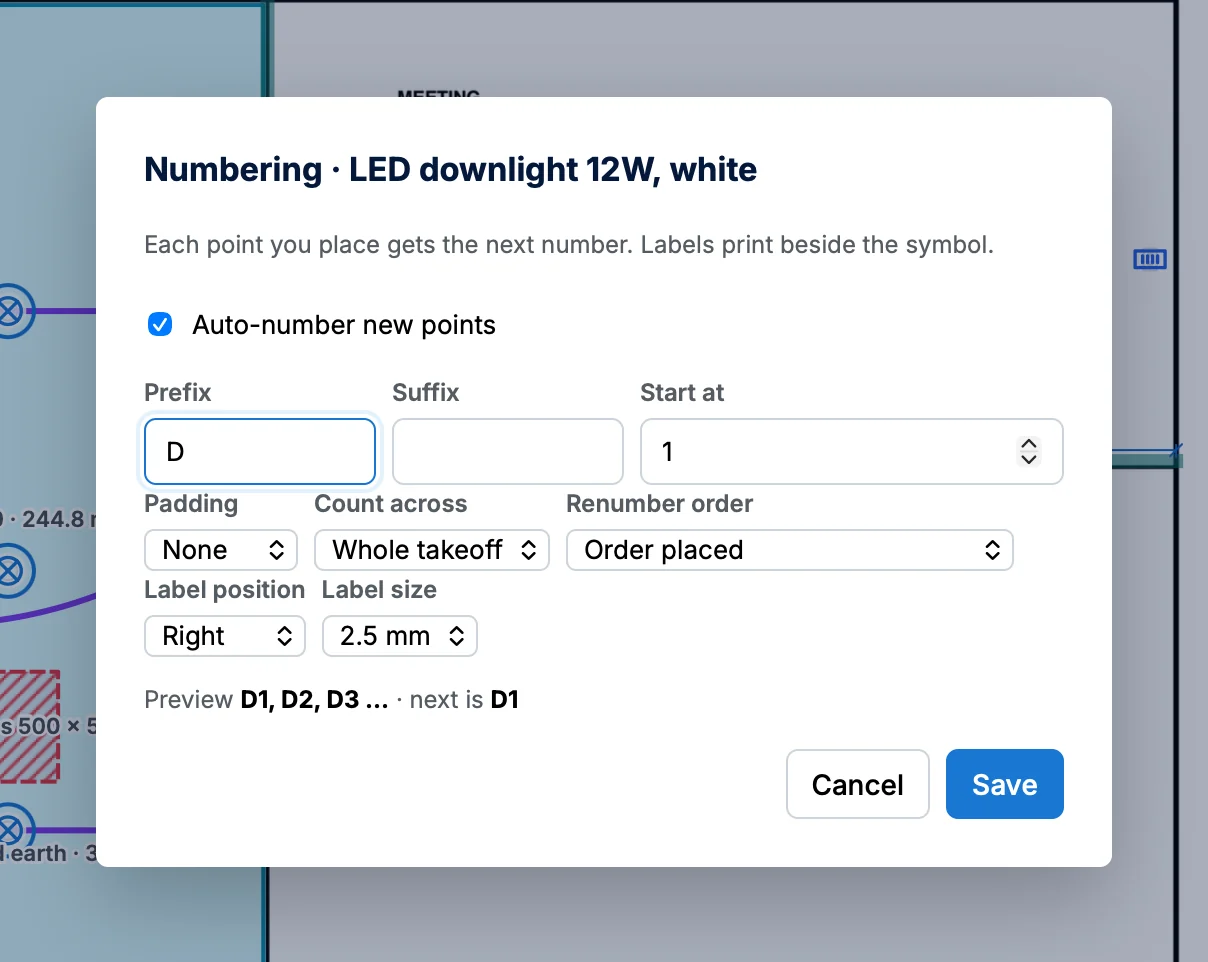
- Right-click one of the item's marks and choose Numbering…. (Or select a point: Numbering… is under the Label box in Selection.)
- Type a Prefix (and a Suffix if you want one), the Start at number and the Padding (None, 2 digits or 3 digits). The line at the bottom previews the numbers, for example D001, D002, D003.
- Choose Count across: the Whole takeoff (D numbers carry on from sheet to sheet), This section or This sheet.
- Leave Auto-number new points ticked and Save. Every point you place with that item now takes the next number.
The number to hand out next is kept with the item's style, so it carries on after you close and reopen the takeoff. While you place, the preview under the pointer says what the next label is.
Change a label
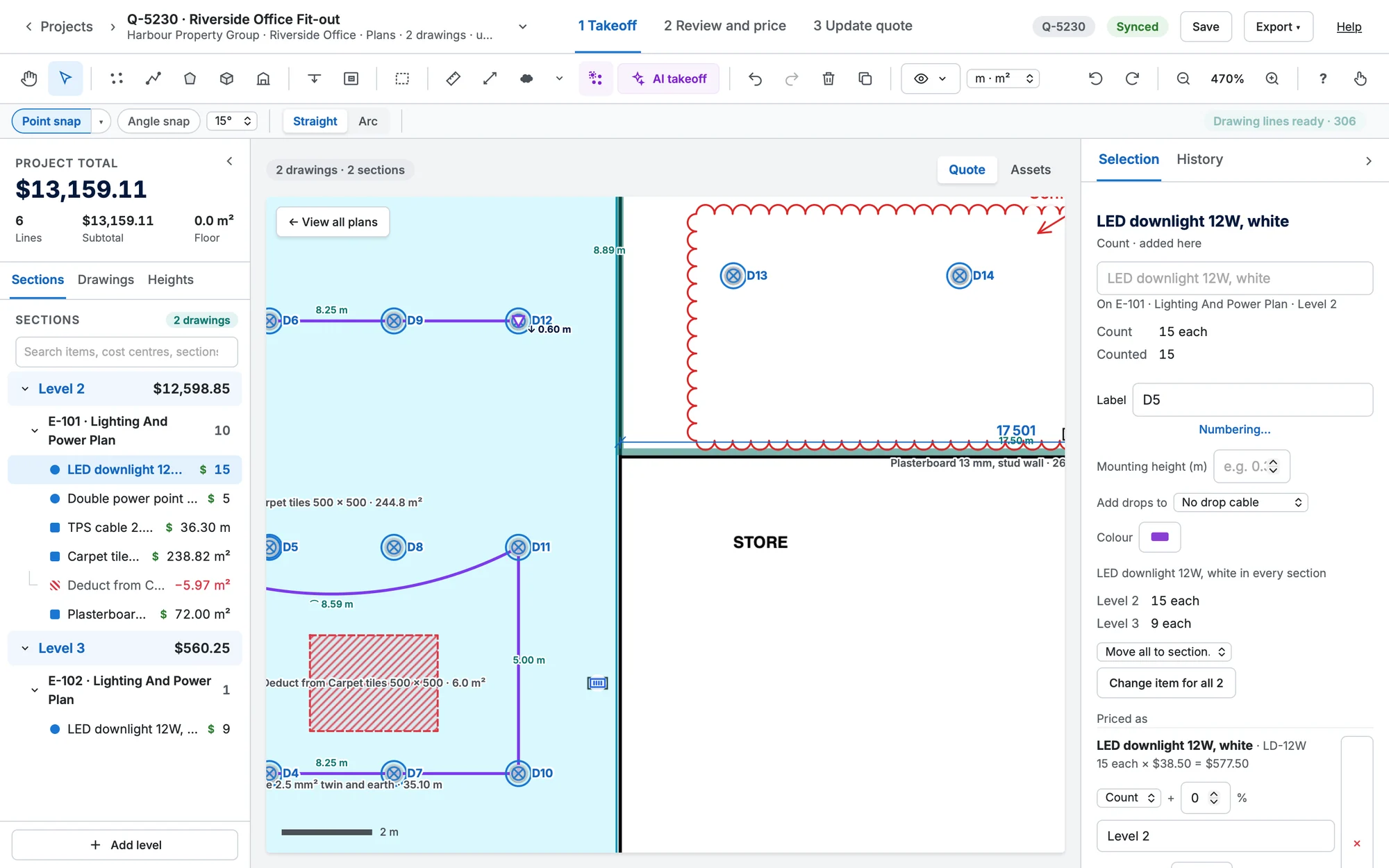
- Pick a point with the Pointer: the Label box in Selection shows its label. Type, then Enter to save. Tab moves to the next point of that count, Shift Tab to the one before.
- Or double-click the label on the board and type a new one. Clear the box to remove the label.
- A label stays with its point when you move it, copy it or change its item.
- A copy takes the next number when the item is set to auto-number; otherwise it keeps the label and adds “ (copy)”.
Fix the numbers in one go
Once an item has numbering, right-click one of its marks: these are in the menu, under Numbering…. Each one is a single undo step.
| Action | What it does |
|---|---|
| Number all | Gives every point without a label the next number. Labels already there stay. |
| Renumber… | Numbers every point again from the start, closing gaps (delete D7 of 24 and Renumber to get D1–D23). It follows the Renumber order in Numbering: the order placed, left to right then top to bottom, or top to bottom then left to right. It asks first. |
| Increment last | Gives the point you placed last the next number, for putting right a skipped one. |
| Increment all… | Adds one to every number, for squeezing a new device in at the start. Labels you typed by hand that don't follow the pattern are left alone, and it says how many. |
| Continue from… | Sets the number the next point gets. It works across sheets. |
| Clear labels… | Removes every label of the item. It asks first. |
Show, hide and print
- Labels are in Visible ▾ → Measurements and labels. They also disappear on their own when they would be under 7 pixels tall: zoom in to read them. Hiding them on the board doesn't remove them from the export.
- In Numbering, Label position puts the label Right, Left, Above or Below the symbol, and Label size is 2.5 mm, 3.5 mm or 5 mm (the size on paper).
- In the exported PDF the legend shows the range beside the item (Downlight D1–D24), and the quantities download has a list of every labelled point. See Export, download and send.
Good to knowTwo people placing the same item at the same time can both get the next number, so a duplicate can happen. Renumber puts it right.