Count items
Click each fitting to count it, or place stacks of several at once.
- Press C (or click the Count tool): the Add items panel opens on the right with this takeoff's count items first (In this takeoff), then the Catalogue, Pre-builds, Templates, One-off and Pinned. Search by name or part number in the box at the top, then click an item, or tick new ones and Add. Or close the panel (✕ or Esc) to draw now and price the counts later. See Items.
- Click each one on the plan. A faint copy of the symbol follows the pointer and shows where the click will land (see the preview below).
- Press Enter (or Esc) to finish. Esc again goes back to the Hand. The new count is selected, and its row shows in Sections under its section and sheet.
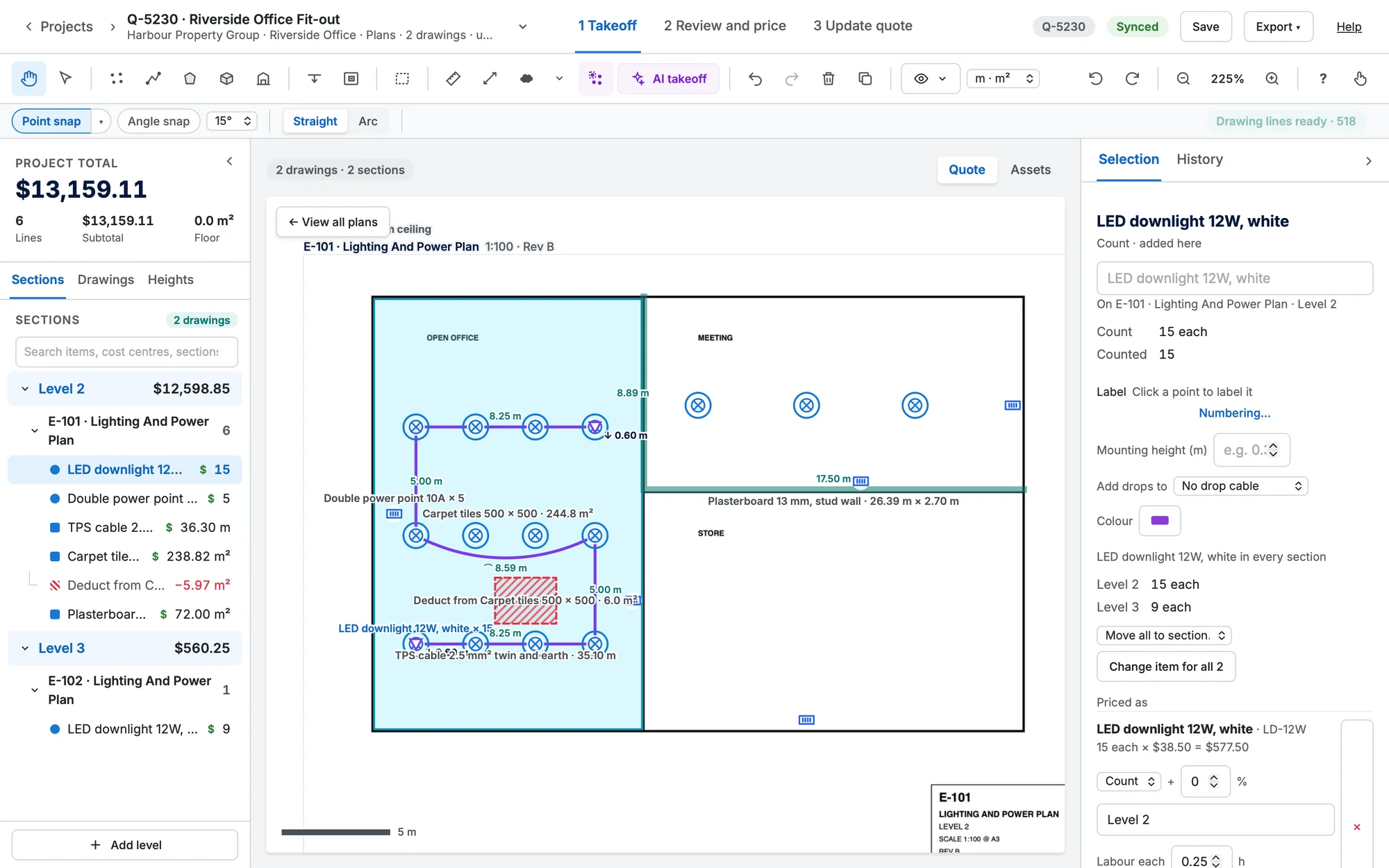
- × in the options row places stacks: each click counts that many, shown as ×N on the plan.
- In Selection, Mounting height and Add drops to add the cable drop from the ceiling to each one onto a run.
- Preview (Y) shows the item's symbol, a little see-through, where the next click will land, already snapped to the plan's lines. Under it is the item's name and, when the item numbers its points, the label the next one gets. Turn it off with the button in the options row or Y.
- To give each one a number or name (D1, D2, SD-012), see Count labels and numbering.
- To count many of the same symbol at once, use symbol recognition.
Turn a count into an asset
After you place a count or an item, Turn this into an asset? shows at the top of the plan. It doesn't stop you: carry on placing and it moves to the newest one, or No (or Esc) puts it away. Yes opens Create Asset, the same form as on a site map. Only Asset Template is needed, and it's chosen for you when the item is an asset in your Simpro catalogue; Location on Site is filled in from where it is.
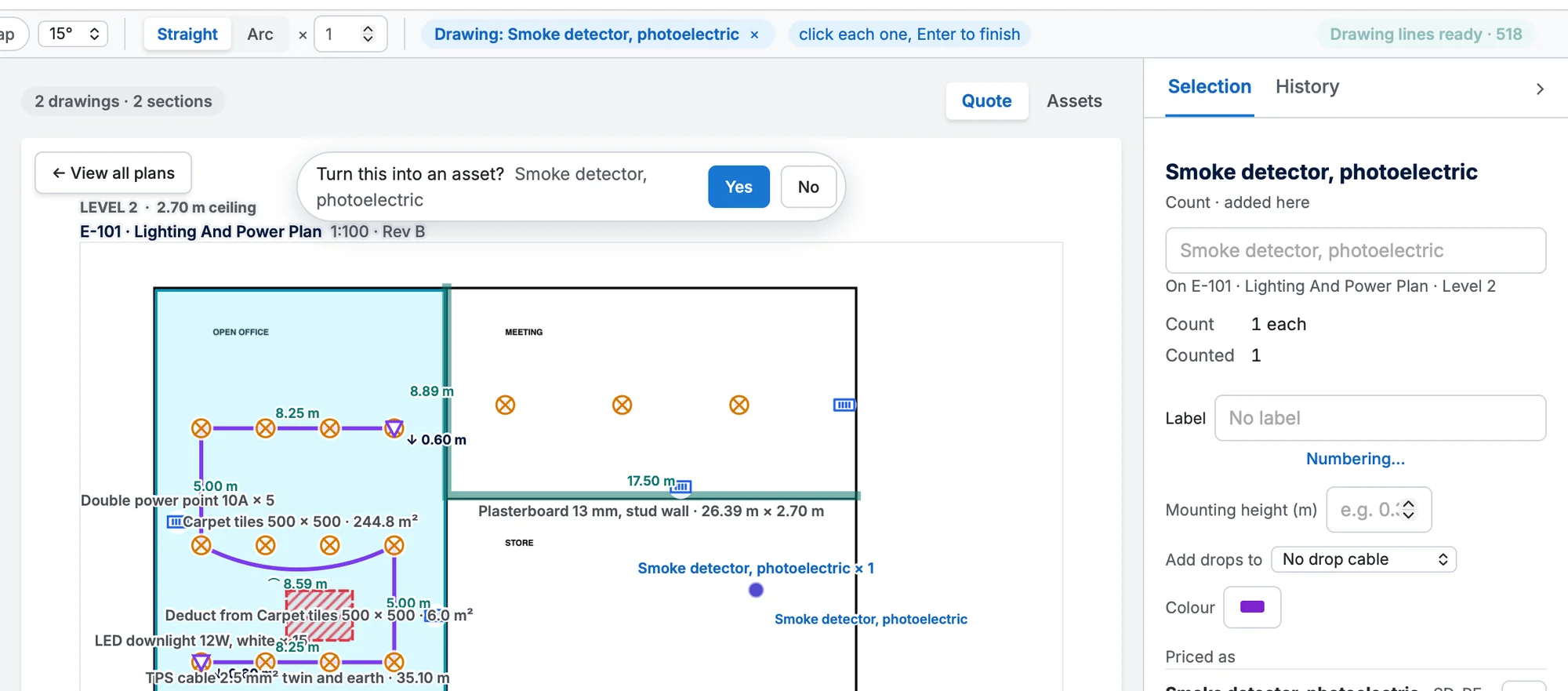
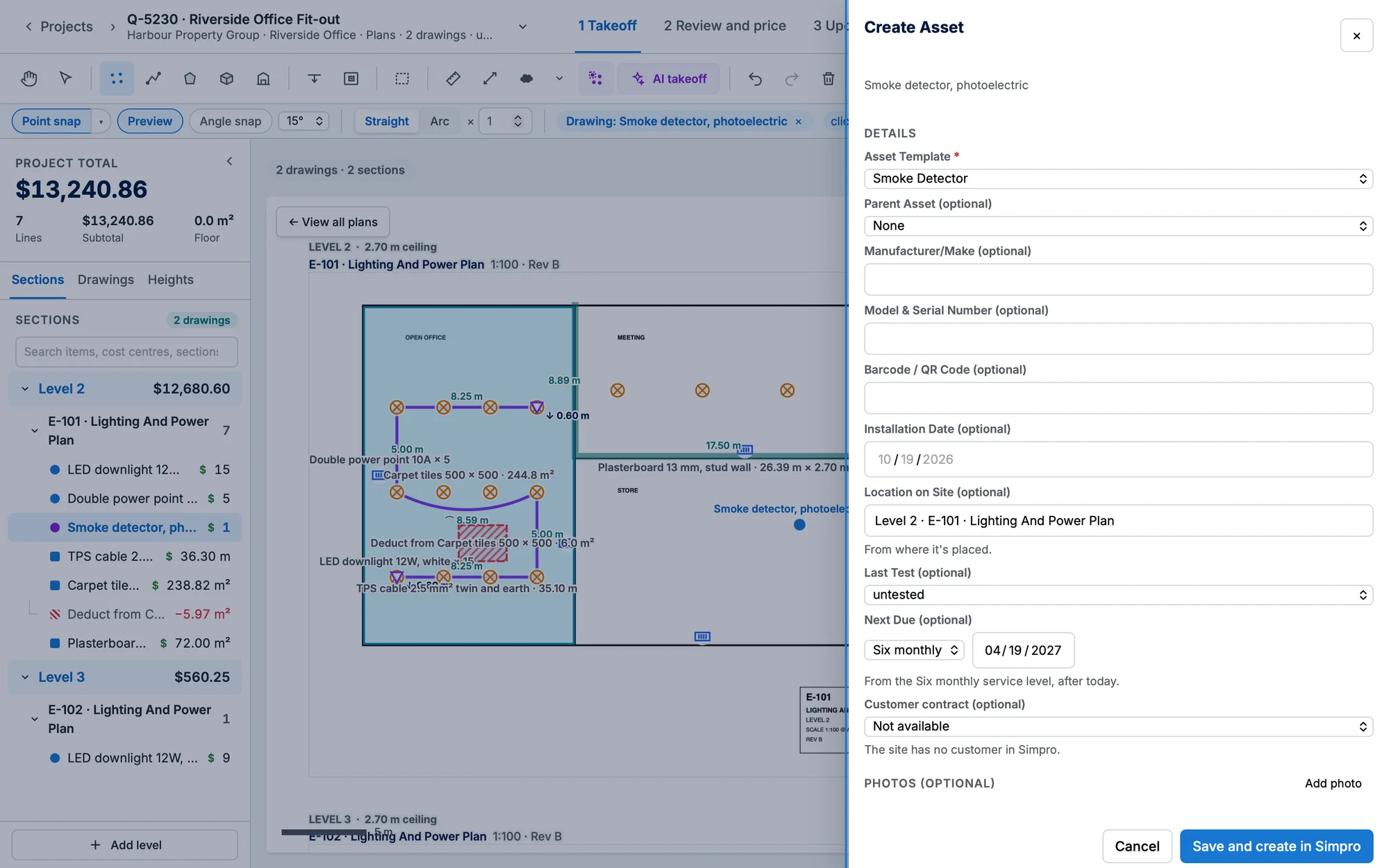
- Later, right-click the count → Convert to Asset… (in touch view, More…).
- A count of several is still one asset: the asset stands for the item, not each click.
- Save and create in Simpro creates the asset on the quote's site and links it to the count. With no site on the quote yet, Save keeps the details on the count; choose the site, then Edit asset… creates it.
- The count's Selection panel shows its asset: the template, its Simpro number (or Waiting to send to Simpro), Edit… and Unlink.