The board: zoom, pan and visibility
Move around every sheet at once, rotate a sheet, and choose what shows.
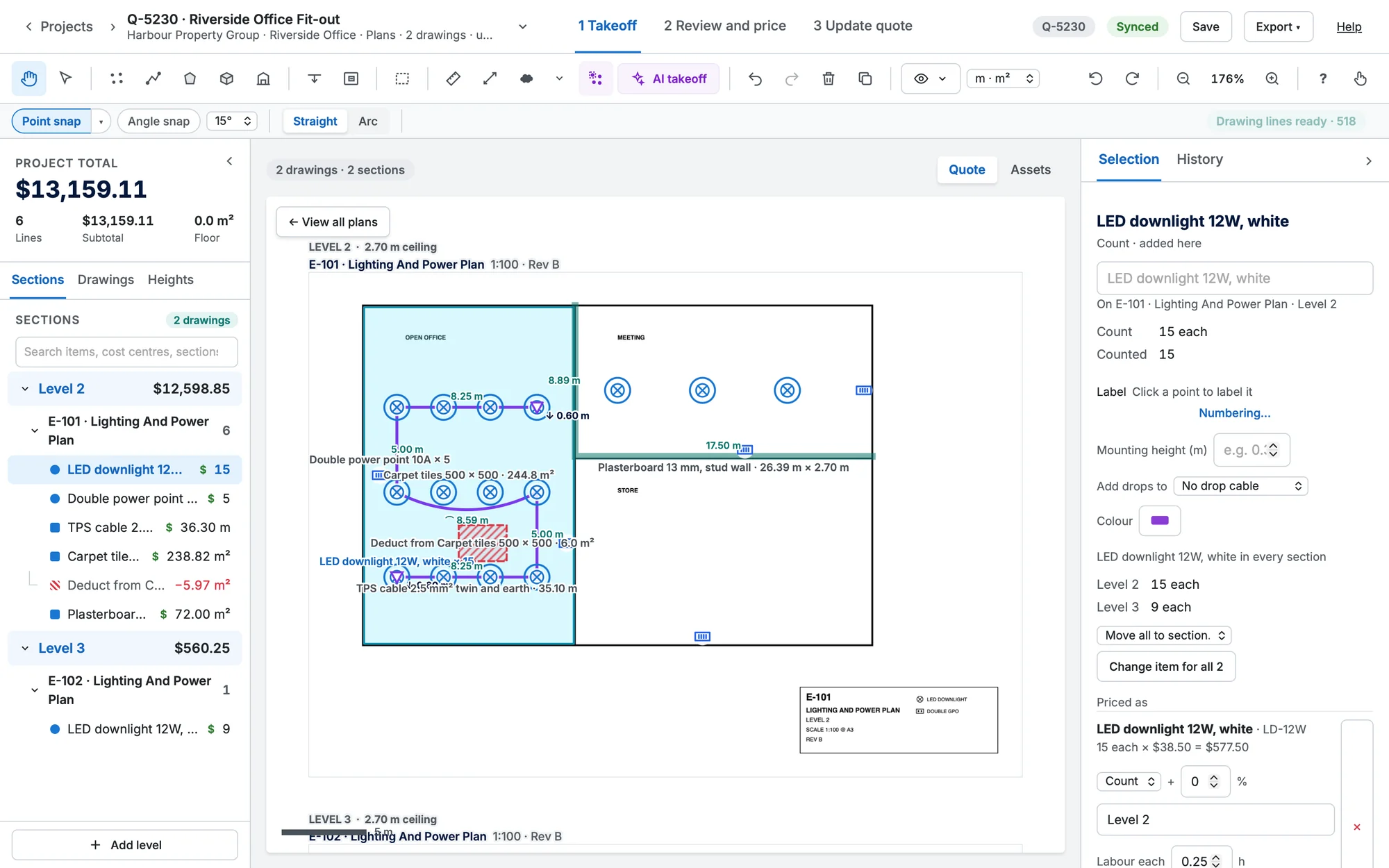
Zoom and pan

| To | Do this |
|---|---|
| Zoom | Mouse wheel or trackpad pinch (it zooms around the pointer), + and −, or the zoom menu. |
| Fit everything | F, or Fit all in the zoom menu. |
| Zoom to what's selected | Z. |
| Zoom to one sheet or section | With the Pointer (V), click its label on the board. ← View all plans takes you back. |
| Pan | The Hand (first in the toolbar, and where the board starts): drag. From any tool, hold Space and drag, drag with the middle button, scroll sideways with two fingers, or use the arrow keys when nothing is selected. |
| Rotate a sheet | [ and ] turn the selected sheet (or the one in the middle) by 90°. Labels stay upright. |
Choose what shows
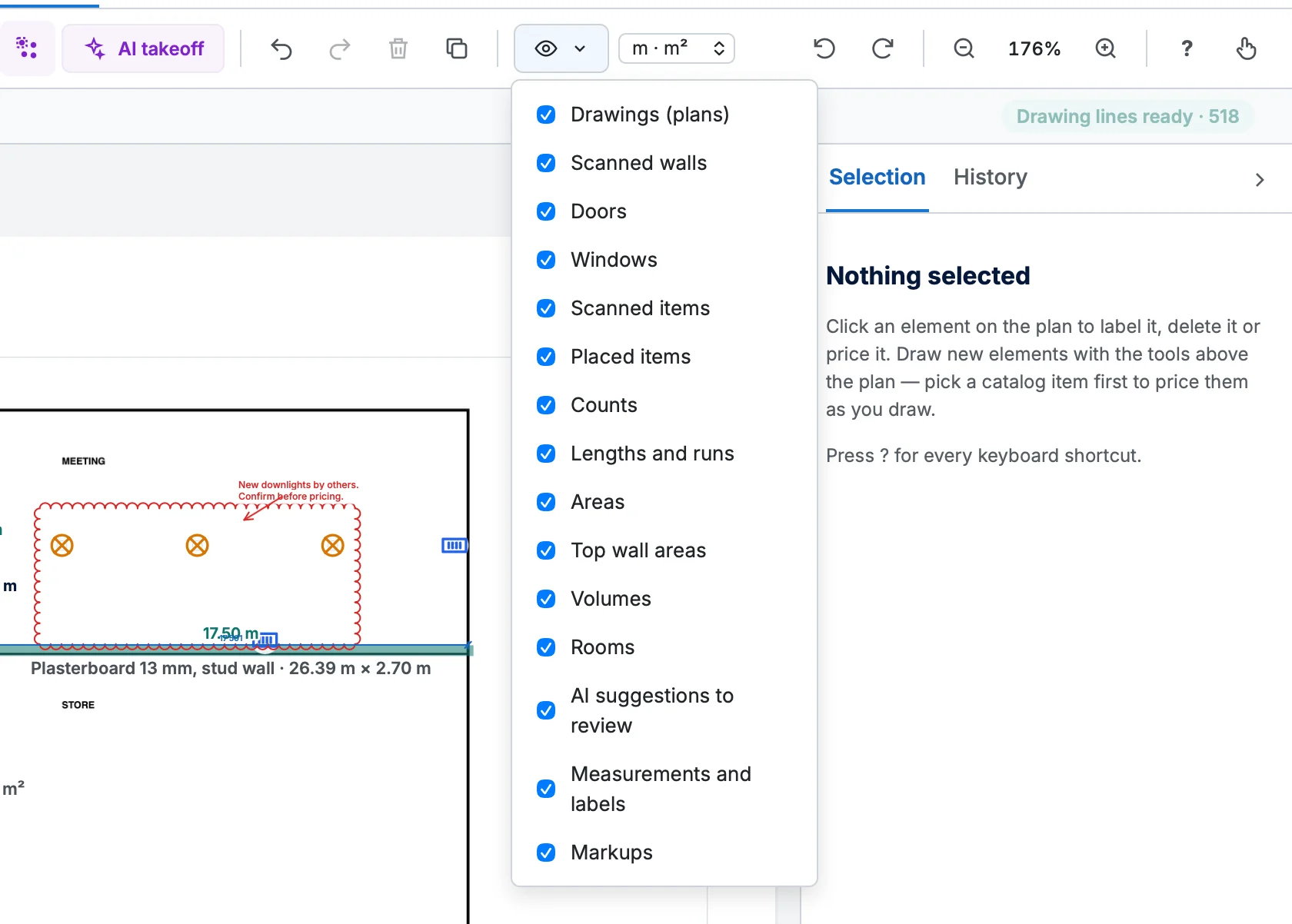
Visible ▾ turns each kind of mark on or off: drawings, counts, lengths and runs, areas, top wall areas, volumes, rooms, AI suggestions to review, measurements and labels, and markups. Your choices are remembered on this computer. Hidden marks still count. To hide particular marks, select them and press H; Show N hidden marks brings them back.
The options row
Under the toolbar: Point snap (P) snaps to your marks and to the plan's own lines (hold Alt to skip it once; the ▾ beside it, or Alt P, chooses what it snaps to: see Snap to the drawing's lines). Angle snap (O, or hold Shift) keeps lines to 15°, 30°, 45° or 90° steps. Straight and Arc (B) choose the next segment's shape. When you count, Preview (Y) shows the symbol before you click: see Count items. With a markup tool, the row holds that tool's size, colour and other choices: see Markup. The row also shows the hint for the tool you're drawing with (the Pointer has none), the item you're drawing with, and how many marks are selected.
Side panels
The search box at the top of Sections filters the tree by item name, cost-centre name or section name (it waits a moment after you stop typing). Matching sections stay open and the box says how many of the sections match (n of m). Clear it to see everything.
- Both side panels collapse: click ‹ or › at the panel's edge ("Hide this panel"). The panel folds to a rail that reads Project (left) or Details (right); click the rail to open it again.
- Drag a panel's inner edge to make it wider or narrower. Double-click the edge to reset it.
Quote or Assets
The Quote | Assets toggle above the plan chooses what the board is for. Quote is the takeoff, with every drawing tool. Assets marks a Simpro site's assets on the plans; on a takeoff that isn't linked to a site yet, it starts Link to site. See Site asset maps.