Drawings, sections and sheets
Organise sheets into sections, tidy a plan, and mark sheets complete as you finish them.
The left panel's Drawings tab lists every sheet by section with what's measured on it. Click a sheet's name to zoom to it.
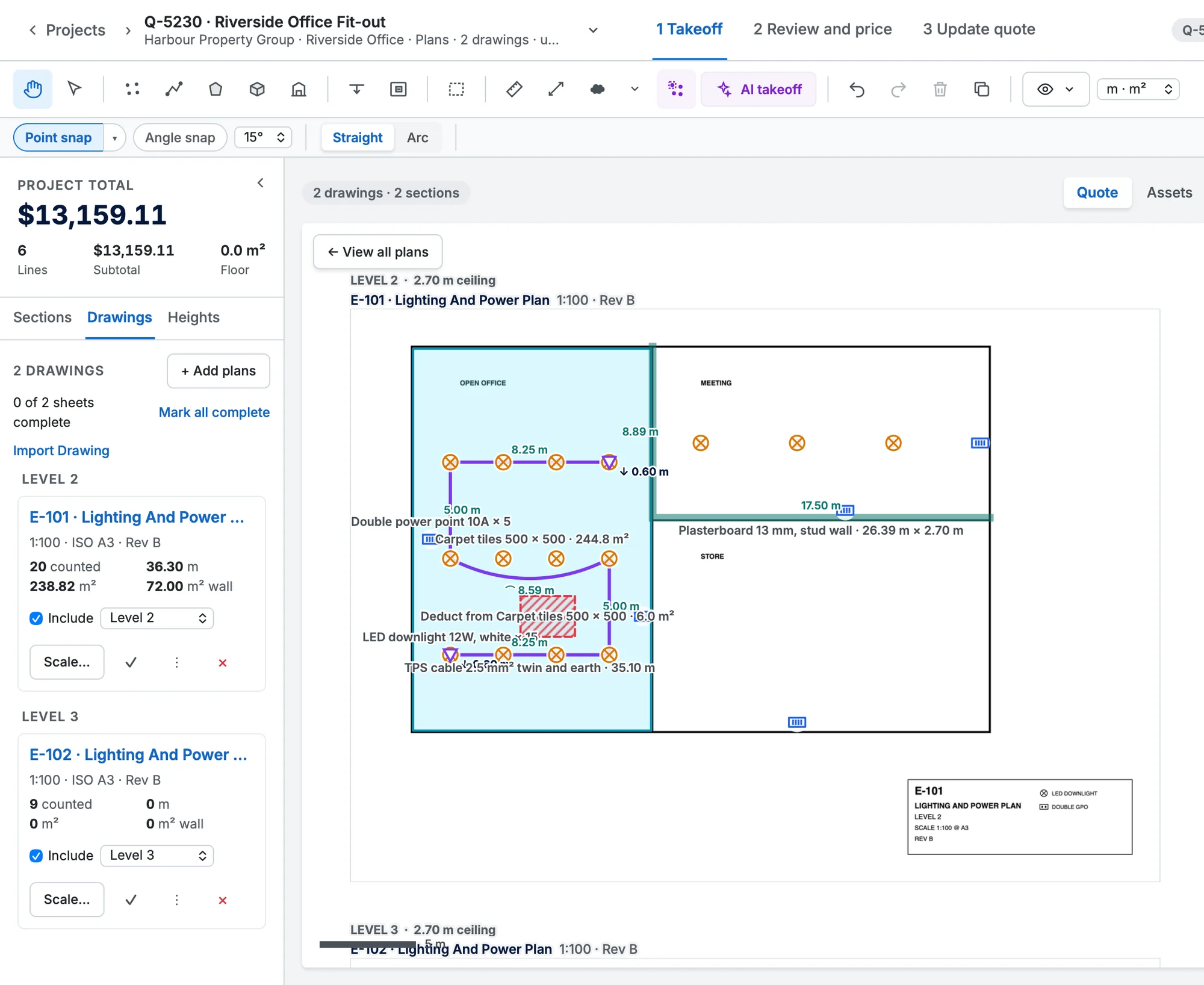
Add plans, sheets and sections
- + Add plans → From files or the job's attachments…: more drawings.
- + Add plans → Blank sheet…: a white sheet to count on (and measure on, once it has a scale).
- + Add plans → Section (cost centre)…: a new section. On a linked quote or job it's created in Simpro straight away.
- Add level, pinned at the bottom of the Sections tab, opens the same Add a section dialog.
- Import Drawing, under the sheets count, brings in a drawing from the older Simpro Takeoffs: choose its export (.json) and its plan image (PNG or JPG). Its counts, runs, areas, volumes and wall areas come across with their items, labour and fit times, and a note lists anything that couldn't be converted.
A section with no plans yet still shows in the tree, with "No plans yet. Add them from the Drawings tab."
The sheet menu (⋮)
| Item | What it does |
|---|---|
| Rename… | Sheet names are unique within a section. |
| Move to section… | Moves the sheet and its marks' quote lines. |
| Duplicate as a new takeoff sheet… | Another sheet on the same page, for example one per trade, empty or with a copy of the marks. |
| Crop to a rectangle… | Drag a box around the part of the sheet to keep. |
| White out an area… | Drag a box over clutter you don't want (a title block, notes). |
| Undo clean-up | Takes the crop and white-outs off again. |
| Upload a revision… | Puts a revised drawing (Rev B) under the sheet's marks. See A revised drawing below. |
| Revisions… | Compares with an earlier revision, or goes back to it. Shown once a sheet has one. |
| Remove… | Removes the sheet and its marks. You can restore it from Plan files, below the sheets, for 30 days. |
A revised drawing
When the architect reissues a sheet, don't start again: ⋮ → Upload a revision… and pick the new PDF (the page with the same sheet number is used). The two revisions are overlaid, grey where they agree, red only in the old one and blue only in the new, and every area that changed is boxed and numbered; Next › steps through them.
- Use Rev B puts the new drawing under your marks, which don't move. The old revision is kept.
- The sheet then shows n changes to check. Click it to go through them: fix the takeoff where the drawing changed and click Checked. The changed areas stay outlined on the plan until they're checked.
- Revisions… compares the current drawing with an earlier one again, or goes back to it.
- The new page must be the same size as the old one, so the marks line up.
Watch the tutorial: a revised drawing arrives.
Copy items to other sheets
To repeat a sheet's items on other sheets, for example a typical floor, use the copy icon in the toolbar: tick the sheets, then Copy. The items land in the same place on each sheet, under its section, and a count joins the same item if the sheet has it. See Select, edit, copy and undo.
Mark sheets complete
Each sheet's row ends with ✓, ⋮ and ✕. Click the ✓ (its tooltip says Mark complete) when the sheet is done: it turns green and the sheet locks, and drawing on it asks first. Click the green ✓ again (Reopen) to unlock it. The panel shows "x of y sheets complete", and Mark all complete finishes the lot. A company can choose to sync only complete sheets to Simpro.
Plan files: more pages and removed sheets
Below the sheets, Plan files lists each uploaded file that has pages not on the board yet or removed sheets; it's hidden when there are none. Add pages (n)… puts more of the file's pages on the board, and Restore brings a removed sheet back with its marks, for 30 days. Hover over a file's name to see which of its pages are on the board.