Projects: find, open and organise
The Projects page lists every takeoff your team has. Search it, filter and sort it, and open or tidy up projects.
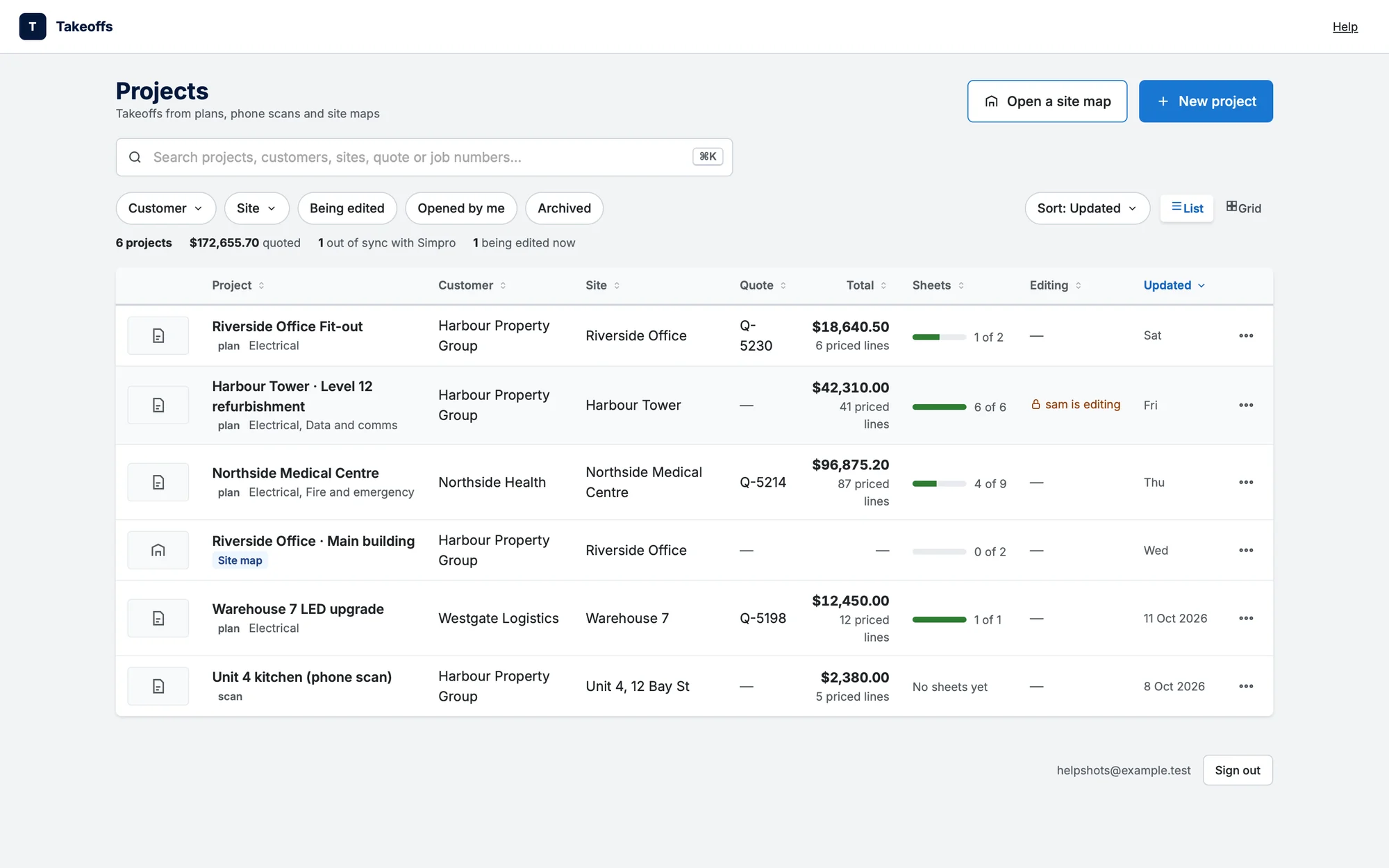
Projects is the first page you see. It lists takeoffs from plans, phone scans and site maps. At the top, New project starts one (see Start a takeoff from plans) and Open a site map opens a site's asset map.
Find a project
- Search: type in "Search projects, customers, sites, quote or job numbers…". ⌘K jumps to the search box.
- Recent: the projects you opened last, as a row of tiles. It shows when there are no filters on and more than 4 projects.
- Filters: Customer, Site, Being edited, Opened by me and Archived (n). Clear all turns them off.
- Sort: chooses the order, and List | Grid switches the view.
- A summary line shows how many projects there are, how much is quoted, how many are out of sync with Simpro, and how many are being edited now.
The list
The columns are Project, Customer, Site, Quote, Total, Sheets, Editing and Updated. Click a column heading to sort by it, and click it again to reverse the order.
- Click anywhere on a row (or a tile in Grid) to open the project. ⌘/Ctrl-click, or a middle-click, opens it in a new tab.
- The customer, the site and the quote number (Q-…) open in Simpro in a new tab.
- If someone else is editing a project, the Editing column says who, and it opens view only.
- New projects from your team wait behind a pill ("N new projects — show"), so rows never jump while you're reading. The list refreshes every minute, and pauses while you hover over it or work in it.
- Load more at the bottom shows the next page.
An AI takeoff that's still running
If you leave a takeoff while its AI takeoff is still running (you open another project, or go back to the list), its project shows Running in the list. When it ends, a banner at the top says "name" is ready (with how many items were found) and the project shows Ready. Open takeoff opens it; Dismiss hides the banner, and the Ready stays until you open the takeoff. If the AI had problems on some drawings, the banner says the takeoff needs a look and the project shows Needs a look: open it to retry them.
Archive or delete
The ⋯ menu on a row has Open, Archive (or Unarchive) and Delete…. Archived projects are hidden until you turn on the Archived filter. Deleting removes the project for everyone, including the iPhone app, and can't be undone.
Your first project
With no projects yet, the page says Start your first takeoff and offers to start from plans, open a site map, or scan with the iPhone app. Try the sample Kitchen opens a sample to explore.
Moving between projects on the board
- ‹ Projects at the top left goes back to the list.
- The ⌄ beside the project's name (or ⌘K) opens the switcher: search, Recent, All projects and New project.
- The address in the browser follows the open takeoff, so reloading the page, or Back, takes you to it again.