Start a takeoff from plans
New project takes you through four steps: who it's for, the plans, sheets and scale, and what to count. The last one runs the AI and opens the board.
Click New project on the Projects page. The New project tile in Grid view, and New project in the project switcher, do the same. A link from a Simpro quote or job with no takeoff yet opens these steps too, already linked.
1 Details: Who is this for?
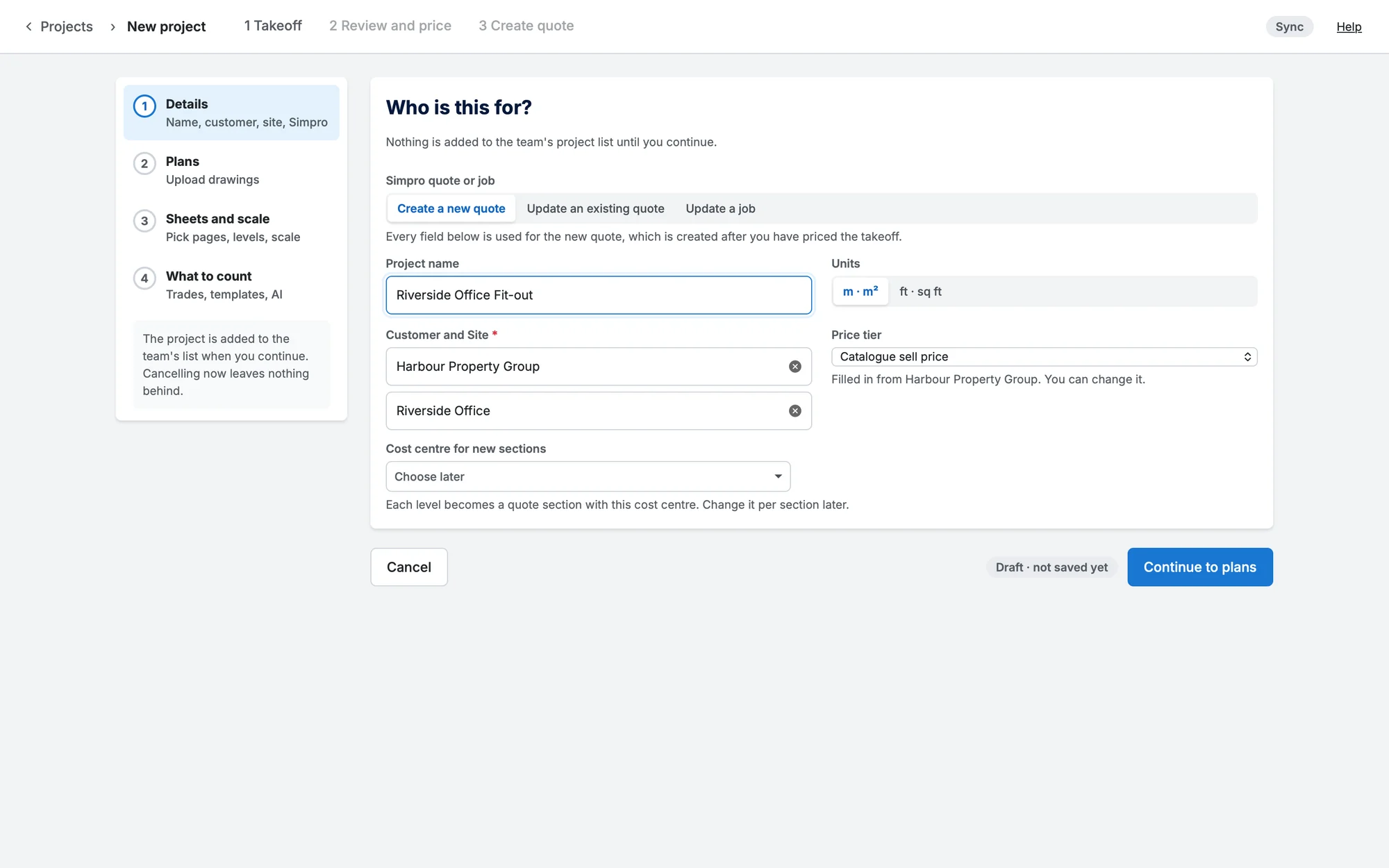
- Simpro quote or job comes first: Create a new quote (created after you've priced the takeoff), Update an existing quote or Update a job. To update one, type its Quote # or Job #, or choose it from the list of open ones. Its customer, site and price tier are filled in for you; the project name and cost centre are optional.
- Project name: leave it blank to name it after the customer and site (or the quote or job).
- Units: m · m² or ft · sq ft.
- Customer and Site (required for a new quote): start typing a customer's name and pick it from the list. A customer with one site has it chosen for you; otherwise click the site box and pick one, or type to narrow the list. + New customer and + New site… stay at the bottom of each list while you type, and add them in Simpro without leaving the step.
- Price tier: filled in from the customer, and you can change it. It sets the sell price for every catalogue item on this quote.
- Cost centre for new sections: each level becomes a quote section with this cost centre. Leave it on Choose later to pick per section.
Nothing is saved yet: the chip at the bottom reads Draft · not saved yet, and Cancel leaves nothing behind. The project is added to the team's list when you click Continue to plans. (If you come back to step 1 later, it's the saved project's details, with Use this quote or Use this job to link one.)
2 Plans: Add the drawings
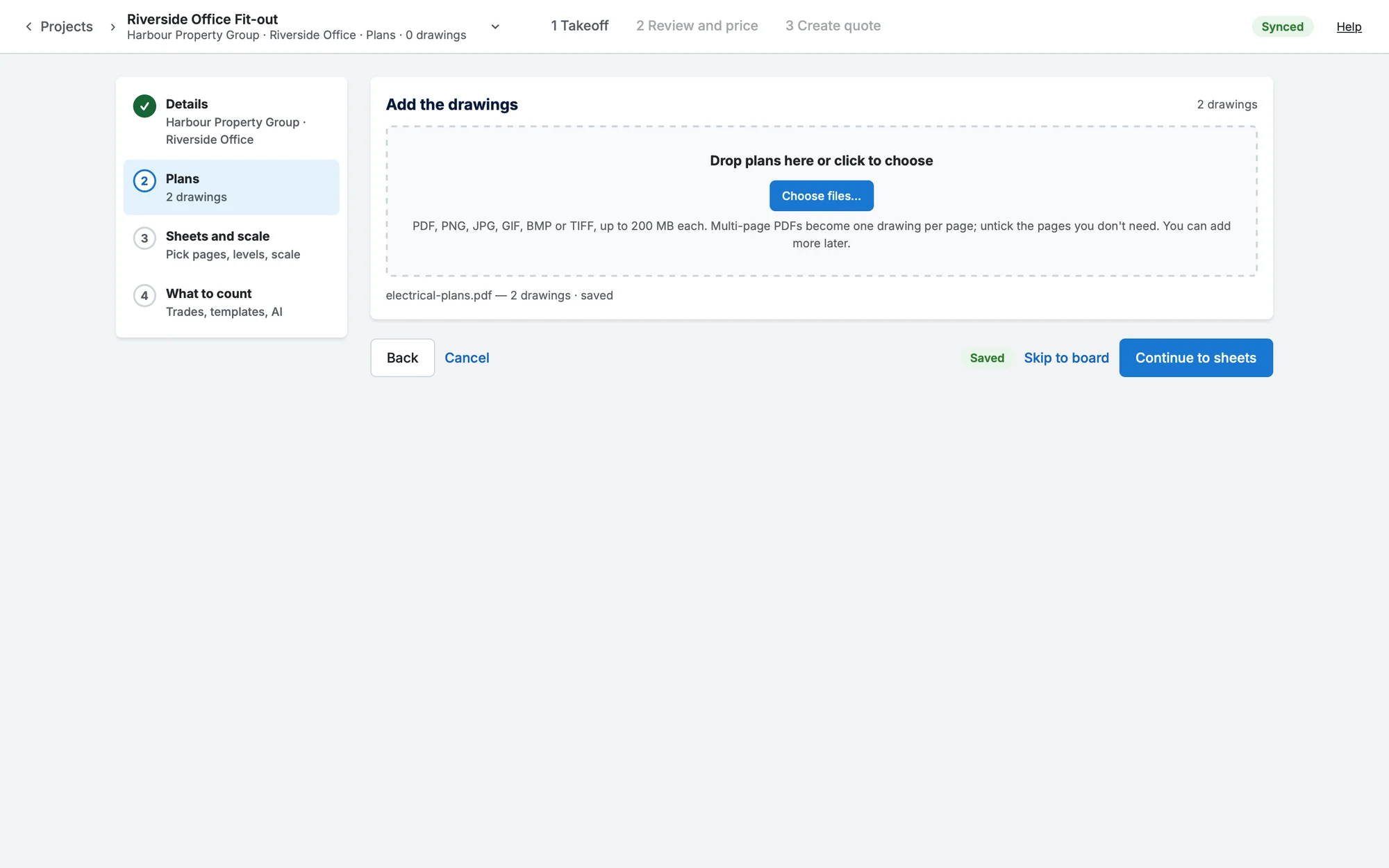
Drop your plans on Drop plans here or click to choose, or click Choose files…. On a linked quote or job, From the quote's attachments… (or the job's, or the site's on a site map) takes them straight from Simpro; the same button is on step 3. Then Continue to sheets.
- PDF, PNG, JPG, GIF, BMP or TIFF, up to 200 MB each.
- A takeoff holds up to 50 drawings, so it stays quick to open. A new project with more is created as several takeoffs, split by section and named after them (for example "Fit-out Part 1 - Level 1 - Level 3"). A note says so when the upload passes 50, and step 3 lists the parts.
- Each page of a PDF becomes its own drawing.
- Add more later from the Drawings tab: + Add plans.
3 Sheets and scale: Choose sheets and scale
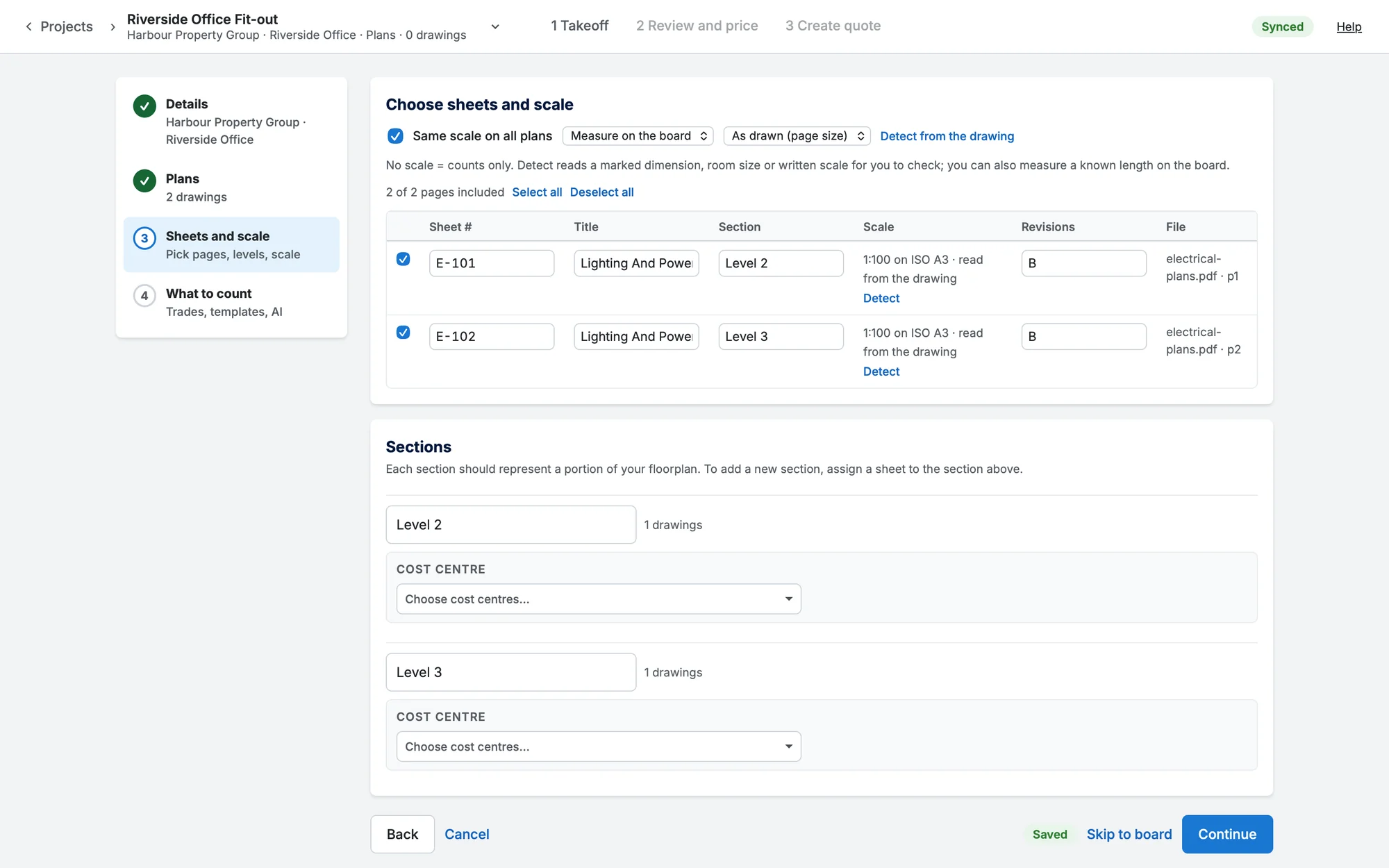
- Untick any pages you don't need. Select all and Deselect all tick or untick every page. A long list scrolls under its header row.
- Check each drawing's Sheet #, Title, Section (its level), Scale and Revisions. Sheet numbers, titles, revisions and written scales are read from the PDF for you.
- Same scale on all plans sets one scale (and paper size) for everything. Turn it off to set each one.
- Measure on the board uses the drawing as drawn (As drawn (page size)). A ratio such as 1:100 needs the paper size it's printed on, so choose one.
- Detect (on each sheet) and Detect from the drawing (for all) are always there. Several sheets can be read at once; when they're all read, each result is shown in turn for you to apply or skip.
- A plan with no scale shows "Not set — counts only until scaled". You can set it later on the board, in the Scale dialog: see Set a drawing's scale.
Sections
Each section should represent a portion of your floorplan, and becomes a section of the quote with its own cost centre. To add a new section, type its name in a sheet's Section column. Rename a section, and choose its cost centre, in the Sections card (or set one default in step 1's Cost centre for new sections). A section can have more than one cost centre; then each item needs to be allocated to the right cost centre in the takeoff: select its marks on the board (Shift-click or drag to select several) and choose it in the Selection panel's Cost centre, one for each such section the marks are in. Until you do, it goes to the section's first cost centre.
4 What to count: What to count and measure
Pick trades, not items: Electrical, HVAC, Low-voltage, Data and comms, Fire and emergency and Security. Walls and surface area is always on. Use standard trade symbols with AI, or choose one of your Simpro take-off templates as a trade's item list.
No chip for your trade? Click Other…, type its name (Plumbing, Solar PV…) and Add trade. It gets a chip and an item list like the others: Standard list means whatever the AI recognises from that trade's usual legend symbols, or choose a take-off template. It's kept with the takeoff, so it's there in the AI takeoff dialog and the Projects list too.
Run AI takeoff when the board opens counts symbols for the trades you picked, measures walls and runs, and finds rooms. Turn it off to measure by hand. Then click Run AI takeoff and open board, or Open board if the AI is off.
While the AI works
A loading screen stays up while the AI works, and the board opens as soon as it's done. It says which drawing and which part of it the AI is reading, how long it has taken and about how long is left, and the bar moves as each part finishes. Cancel stops it and keeps whatever was already finished. If you leave the takeoff anyway (go back to the list, or switch tabs), the AI carries on on the server and you're told when it's done: on the Projects page a banner says "name" is ready, with Open takeoff, and the project shows Running and then Ready; the browser tab's title flashes and shows a check, and you get a notification if your browser allows them. Inside Simpro, the takeoff's tab can show a spinner and then a check.