Welcome to Takeoffs
What Takeoffs does, how to open a takeoff, and a tour of the screen.
Takeoffs turns plans into a priced quote. You upload the drawings, set their scale, count and measure on them (by hand or with the AI), choose catalogue items from Simpro, and then create or update the quote or job in Simpro. For service work, the site asset map puts every fire door, detector and extinguisher on the building's floor plans.
Open a takeoff
- From Simpro: a link from a quote or job opens its takeoff. If the job doesn't have one yet and it came from a quote that did, the takeoff is brought across for you ("Brought the takeoff over from quote #…"). If there's no takeoff to bring over, the New project steps open, already linked.
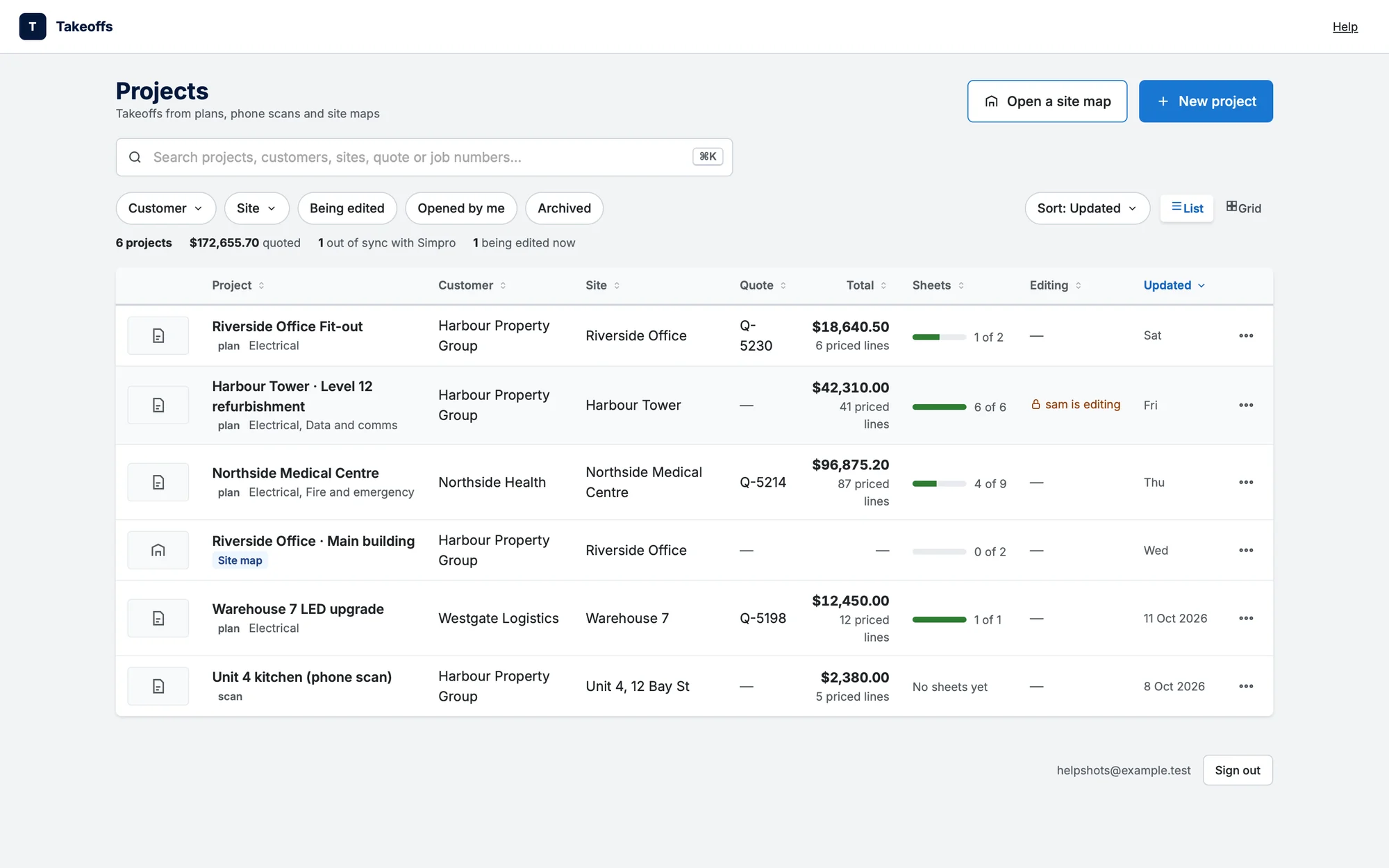
- Projects: every takeoff from plans, phone scans and site maps. Click a row to open it. New project starts one; see Start a takeoff from plans and Projects.
- Open a site map on the Projects page: open a site's asset map. See Site asset maps.
Find your way around
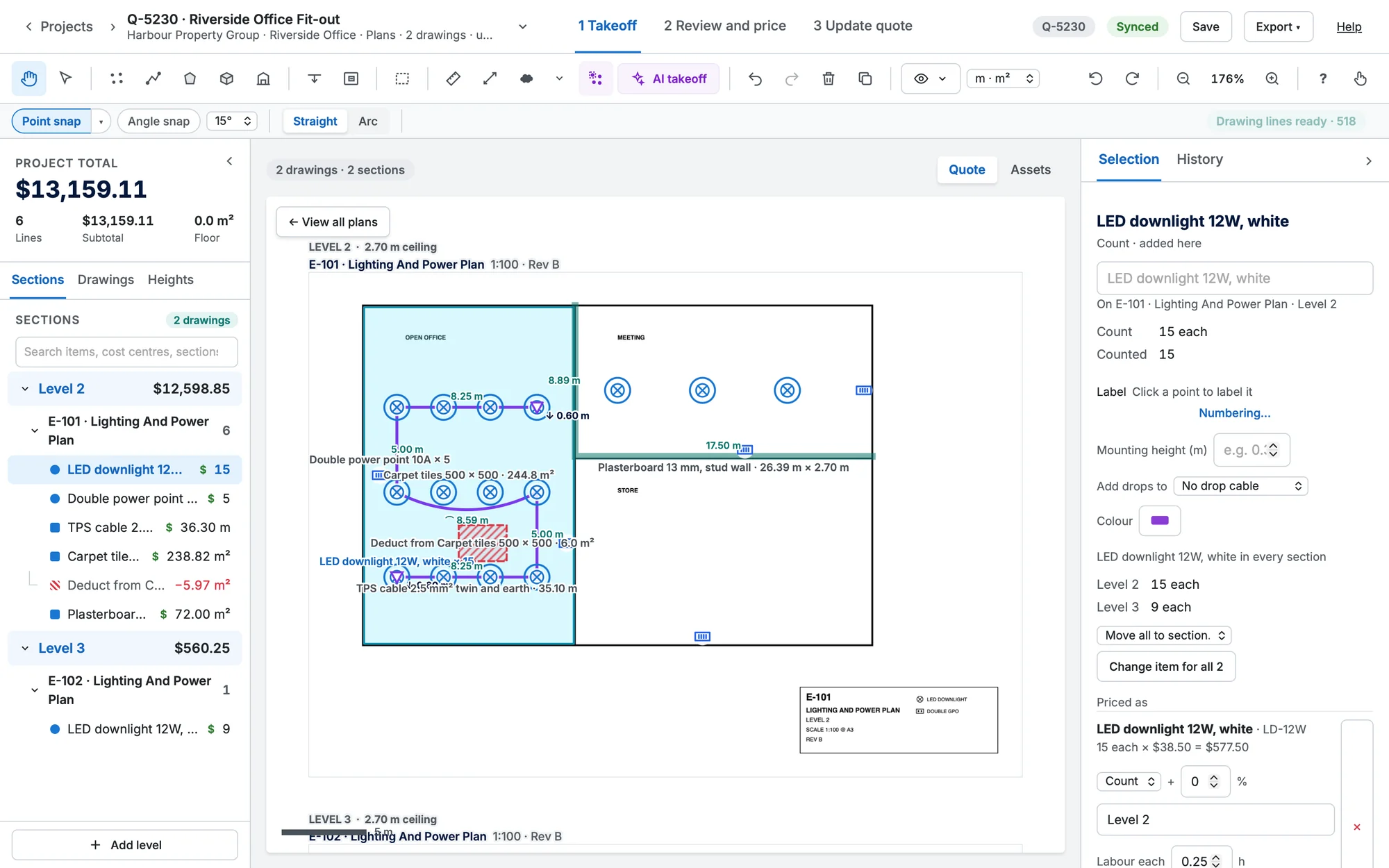
| Area | What it's for |
|---|---|
| Header | ‹ Projects to go back to the list, the quote or job number and name with the project switcher ⌄ beside it ("Switch project (⌘K)"), the three steps (1 Takeoff, 2 Review and price, 3 Create quote, which reads 3 Update quote or 3 Update job when updating), the quote chip (Synced · Q-… or Out of sync · Q-…), sync status, Site map (on a job), Save, Export ▾ and Help. Sign out is in the project switcher, and at the foot of the Projects page. |
| Toolbar | The Hand and Pointer, the measuring tools, Markup (see Markup), symbol recognition, AI takeoff, undo and redo, delete, copy to other drawings, Visible ▾, units, rotate, zoom, ? and the touch view button (a hand; it becomes a monitor while touch view is on). |
| Left panel | The project total, then Sections, Drawings and Heights. The search box under Sections finds an item, cost centre or section. A mark you've just placed (or picked on the plan) shows in its section and sheet, opened and scrolled to. |
| Quote | Assets | Above the plan: Quote is the takeoff with every drawing tool; Assets marks a Simpro site's assets. See Site asset maps. |
| The board | Every sheet of every section on one canvas. The board starts on the Hand, so a press and drag pans. With the Pointer, click a sheet's label to zoom to it. |
| Right panel | Selection (whatever you picked) and History. Picking something in Sections opens Selection, even when the panel is hidden to its rail (it stays hidden next time) or, in touch mode, closed. |
When you send to Simpro, its progress and results show in a small notice at the bottom left. Click it to dismiss it.
Your work saves itself
Every change syncs as you work. The sync chip in the header shows Sync, Syncing…, Synced, Offline — saved here, Not sent · N saved here or Sync error. If you close the tab with changes still to send, the browser warns you, and anything unsent is kept for next time. Save (⌘S) also keeps a named version you can go back to: see Versions and history.
If the connection drops, a banner says "You're offline." If the server has trouble, it says "The server isn't responding right now." Either way your changes are kept. The banner checks again by itself, or click Try again.