Site asset maps
Map every asset in a building on its floor plans: where it is, what it is, and how its last test went.
A site map shows a building's assets on its floor plans. Each building on a Simpro site has its own map, with as many floors as it needs. Simpro keeps the asset itself (its details, fields and tests); the map keeps where it is.
Open a site map
- Open a site map on the Projects page, then search for the site.
- Site map in a job's header opens the job's site.
- Once the site has a map, Open a site map asks which building: choose one, or New building… to add the next. A new building asks for its name and then its plans (from files or the site's attachments in Simpro).
- Every plan you upload for a site map is also saved to the site's attachments in Simpro, once, when you save: a plan you took from the site's attachments is not sent back, and a name already there gets a number added ("Level 1_1.pdf"). A plan over 25 MB isn't sent; a message says so, and you can add it to the site in Simpro. If the site has no attachments yet, From the site's attachments… says so and explains that uploading a plan will add one.
- To move to another building, open the site map again from the Projects page.
Quote or Assets
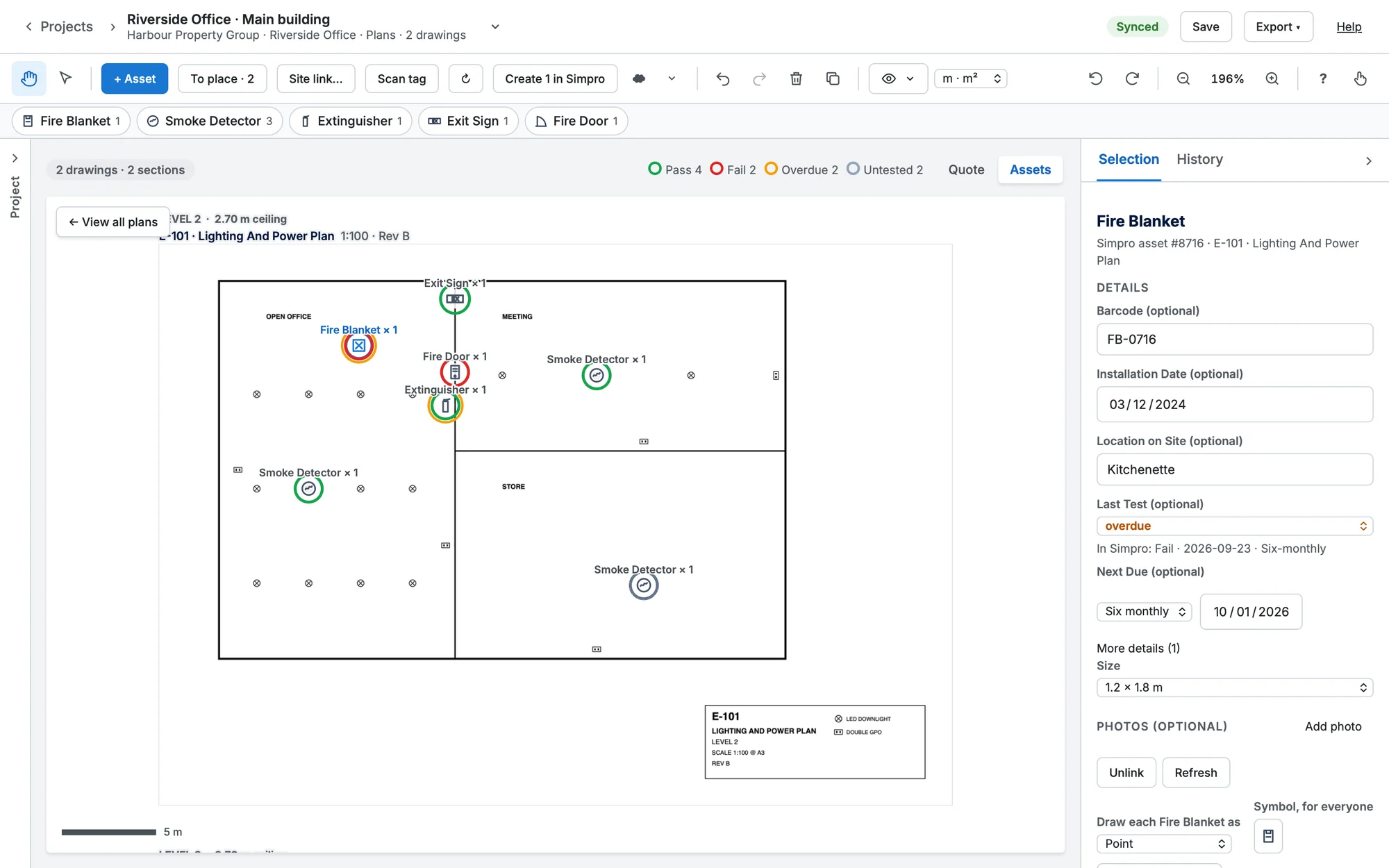
A site map opens in Assets mode. The asset controls (+ Asset, To place · N, Site link…, Scan tag, ↻ and the legend) take the place of the drawing tools in the toolbar, and the left panel is hidden. The Quote | Assets toggle above the plan switches back.
On an ordinary takeoff, choosing Assets in the Quote | Assets toggle starts linking it to a site, so its plans become one of the site's building maps.
Change or remove the link
On a site map, Site link… in the Assets toolbar offers Rename building…, Change site… and Remove from site…. Moving or removing takes the asset marks off the plan; the assets stay in Simpro.
Place an asset
+ Asset opens a list under the button: + Create new asset first, then the site's assets already in Simpro, the ones still to place first, with where each one is and how its last test went. Search by type, number or tag. Click outside the list or press Esc to close it.
- Choose an asset from the list, then click the plan where it is. It can go anywhere. Its Location on Site in Simpro is filled in from where you placed it, and its details open on the right (in touch view, the right drawer).
- Or choose + Create new asset: pick the asset type (your recent types are at the top), then click the plan where it is. The tool stays on, so placing 40 detectors is 40 clicks, and the type gets its own button in the row under the toolbar.
- The Create Asset form opens on the right with the Asset Template already chosen; you can change it there, and above it set the type's symbol and Draw each … as. Fill in as many details as you know: only the Asset Template is required, so Create in Simpro works straight away and the asset stays pinned where you placed it.
| Field | An asset in Simpro | A new asset |
|---|---|---|
| Asset Template | The asset's type | Required; the type you placed |
| Parent Asset | — | One of the site's assets |
| Manufacturer/Make, Model & Serial Number | Under More details, if the type has them | Optional |
| Barcode / QR Code | Saved as you go | Optional; a scanned tag fills it |
| Installation Date | A date, saved as you go | Optional |
| Location on Site | Filled in from where it's placed | Optional; filled in from where it's placed |
| Last Test | Untested, failed, passed or overdue, kept on the map | The same |
| Next Due | The asset's service level and date, saved as you go | From the type's service level: one interval after installation (or today) |
| Photos | Take a photo or upload one | The same; sent once it's created |
| Customer contract | — | The customer's contracts, when Simpro gives them (it needs Simpro's Maintenance Planner) |
Make, model, barcode and location are custom fields on each asset type in Simpro, matched by name. If a type doesn't have one, the value stays on the map and the field says so.
In the left panel, each sheet has one row per asset type with how many are on it. Click a row to see them on the right, then pick one.
Copy assets to other drawings
Where floors are laid out alike, place the assets on one and copy them to the others: select the assets (or nothing, for every one on the drawing), click the copy icon in the toolbar, tick the drawings and click Copy. Each copy goes in the same place on the page as a new asset of the same type, not yet linked to Simpro, so the type's count on that drawing goes up. Nothing is written to Simpro until you link or create each one.
Assets already in Simpro
To place lists the site's assets that aren't on any map yet, by type, with how many are placed. Click Place, then click where it is. A new asset you placed can also be linked to one of them with Or link an existing asset….
Status colours
| Ring | Means |
|---|---|
| Green | Passed its last test. |
| Red | Failed its last test. |
| Grey | Not tested yet. |
| Amber outer ring | A service is overdue. |
| Dashed | Not in Simpro yet (blue: waiting to send; red: Simpro refused it). |
In Assets mode, the toolbar shows a legend with counts. Click an asset for its last test, next due date and fields. ↻ reads everything from Simpro again.
Walls, curtains and compartments
Some assets are lines or areas, not points: a fire wall, a fire curtain, a compartment. In an asset's details, Draw each … as Point, Line or Area sets it for the whole company. Types with wall, curtain, barrier or partition in the name start as lines, and compartments and zones as areas.