Tutorial: a revised drawing arrives, swap it in and fix only what changed
Rev B of the lighting plan lands after you've priced Rev A. Swap it in under your takeoff, see exactly what changed, and fix only that.
Chapters
What you'll learn
- Upload Rev B under the takeoff you priced on Rev A
- See what changed: the overlay, and every changed area numbered
- Use Rev B without moving a single mark
- Fix the takeoff change by change, then check it off
Each step below has a ▶ time: it plays the video from that step.
The steps
- Open the Drawings tab, click the sheet's ⋮ and choose Upload a revision…. Pick the new PDF. If it has several pages, the one with the same sheet number is used; otherwise you're asked which page.
- The two revisions are laid over each other: grey is in both, red only in the old one, blue only in the new. Overlay, Rev A and Rev B switch the view.
- Each area that changed is boxed and numbered. Next › and ‹ Previous zoom to each one, and the bar says what changed and how many of your marks are inside it.
- Click Use Rev B. The new drawing goes in under your marks, which don't move, and the old one is kept. Cancel leaves the sheet as it was.
- The sheet now shows n changes to check, and the first change is on screen. Fix the takeoff there (here: drag the meeting rooms' downlights to their new positions) and click Checked · next ›.
- Do the same for each change: move the kitchen's power points to the other wall, count the new row of downlights in the open office, and mark the rest checked.
- When every change is checked the chip goes. Revisions… in the sheet menu compares with an earlier revision again, or goes back to it (the current one stays in the list).
More to watch
Every tradeEstimators and service teamsDesktop, tablet and phone
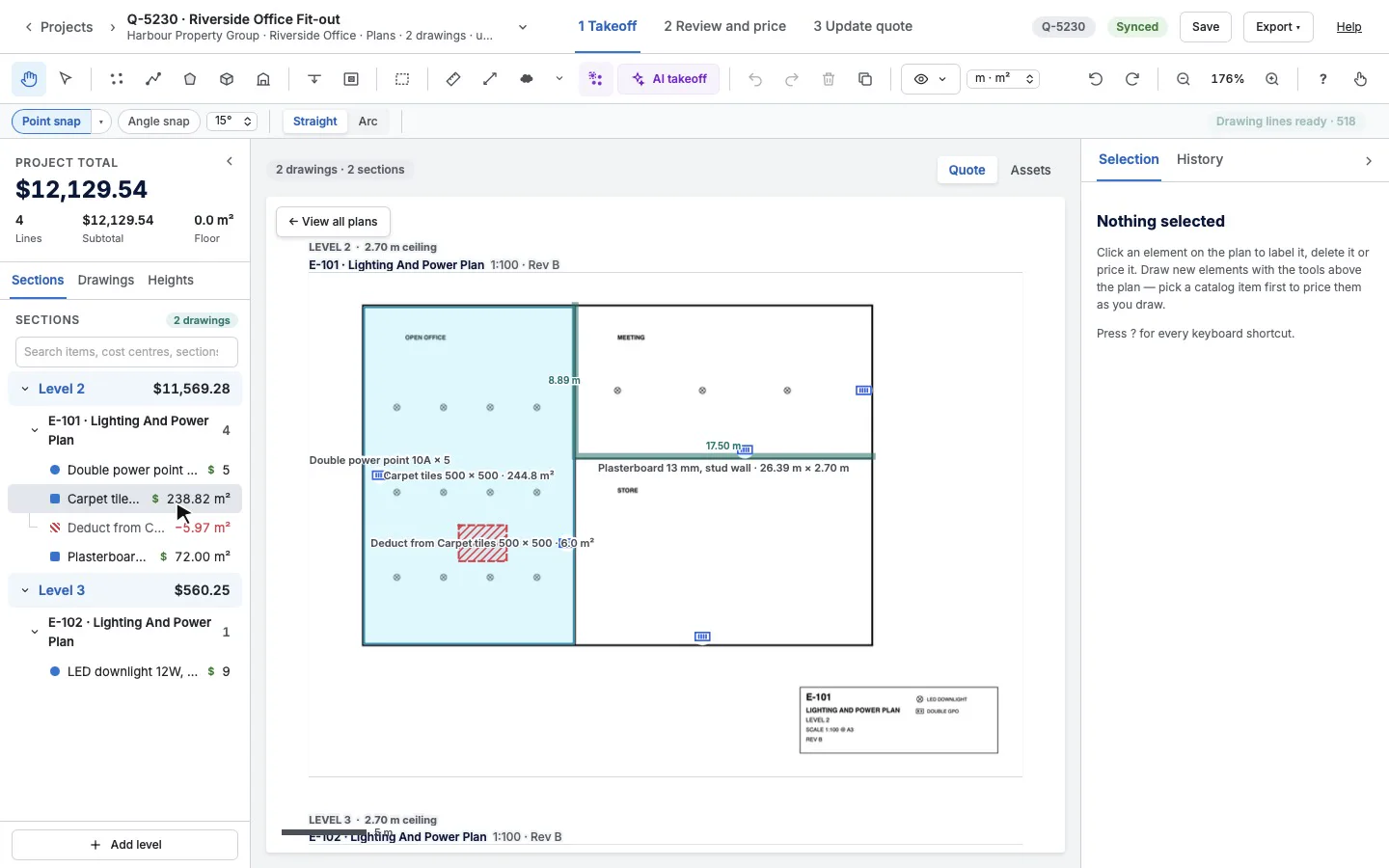
Takeoffs in three minutes
A takeoff from plans to a Simpro quote, then a site asset map on a phone. Start here if you're new.
ElectricalEstimatorsDesktop
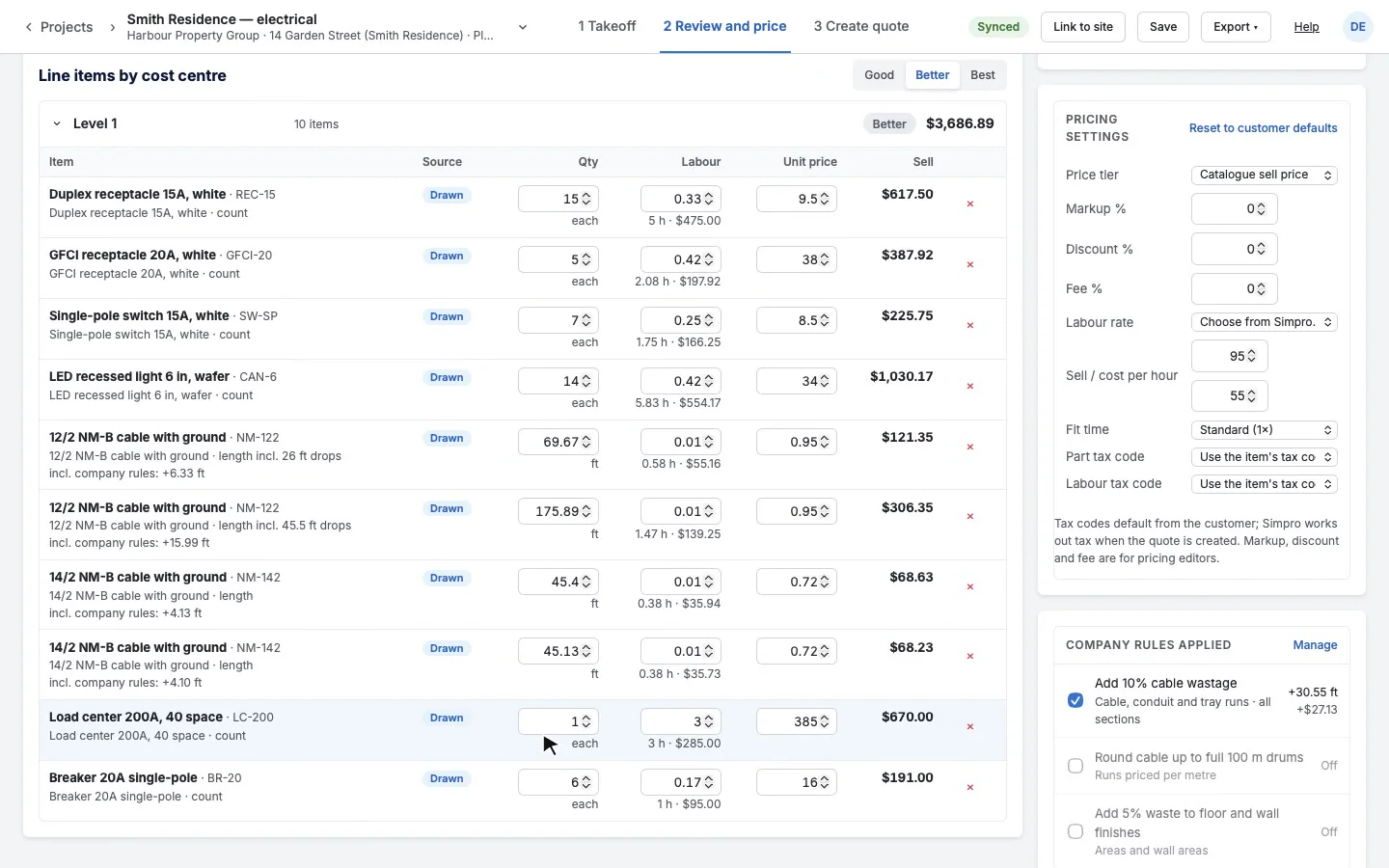
Price a house's electrical
A whole house, from an empty floor plan to a priced takeoff that says how many devices and how many feet of cable the job needs.
SecurityEstimatorsDesktop
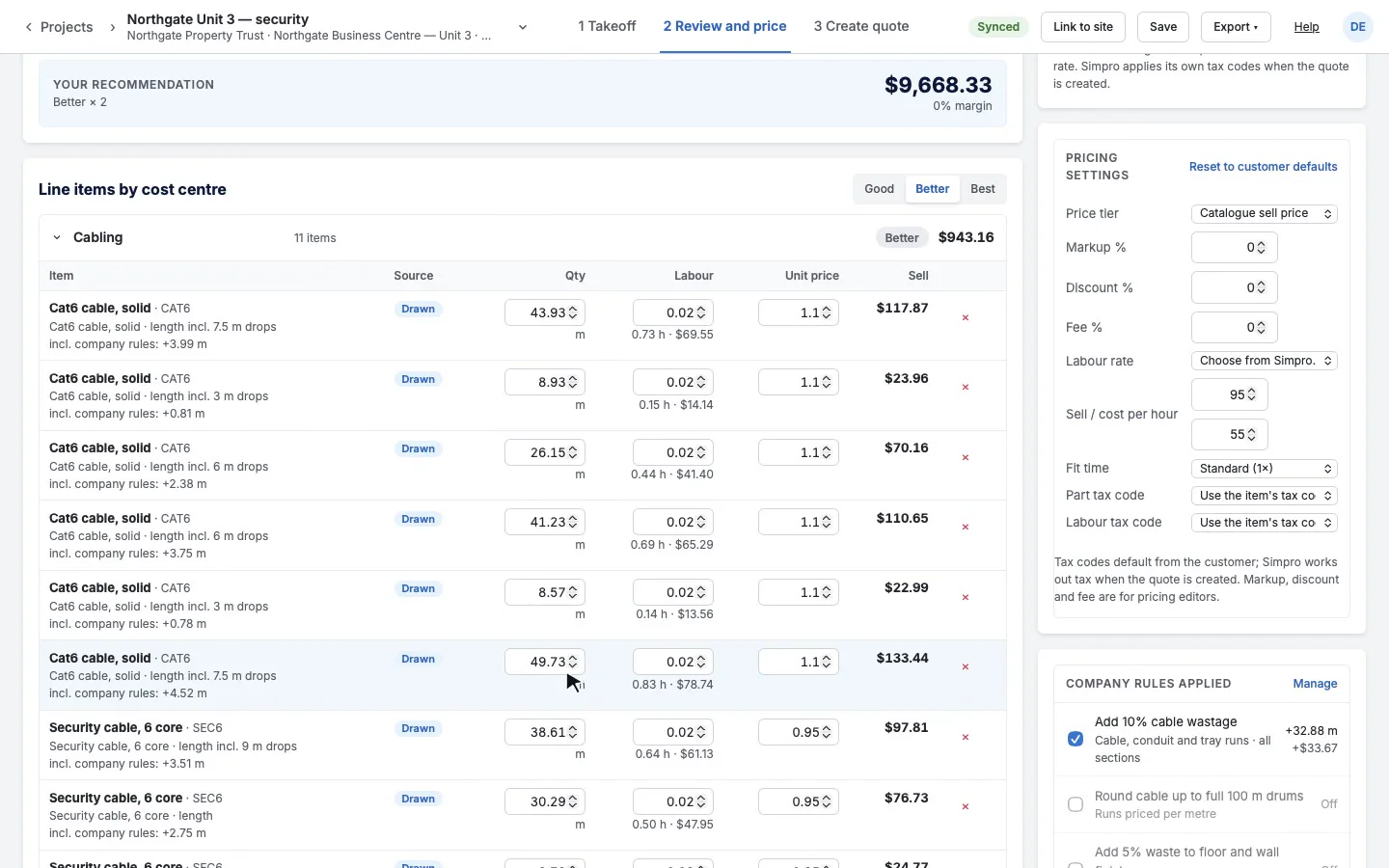
A commercial security install
Cameras, intrusion detection, access control and the panels in an office, with all the low-voltage cabling in its own cost centre.
Fire and safetySurveyors and service techsTablet or phone, on site
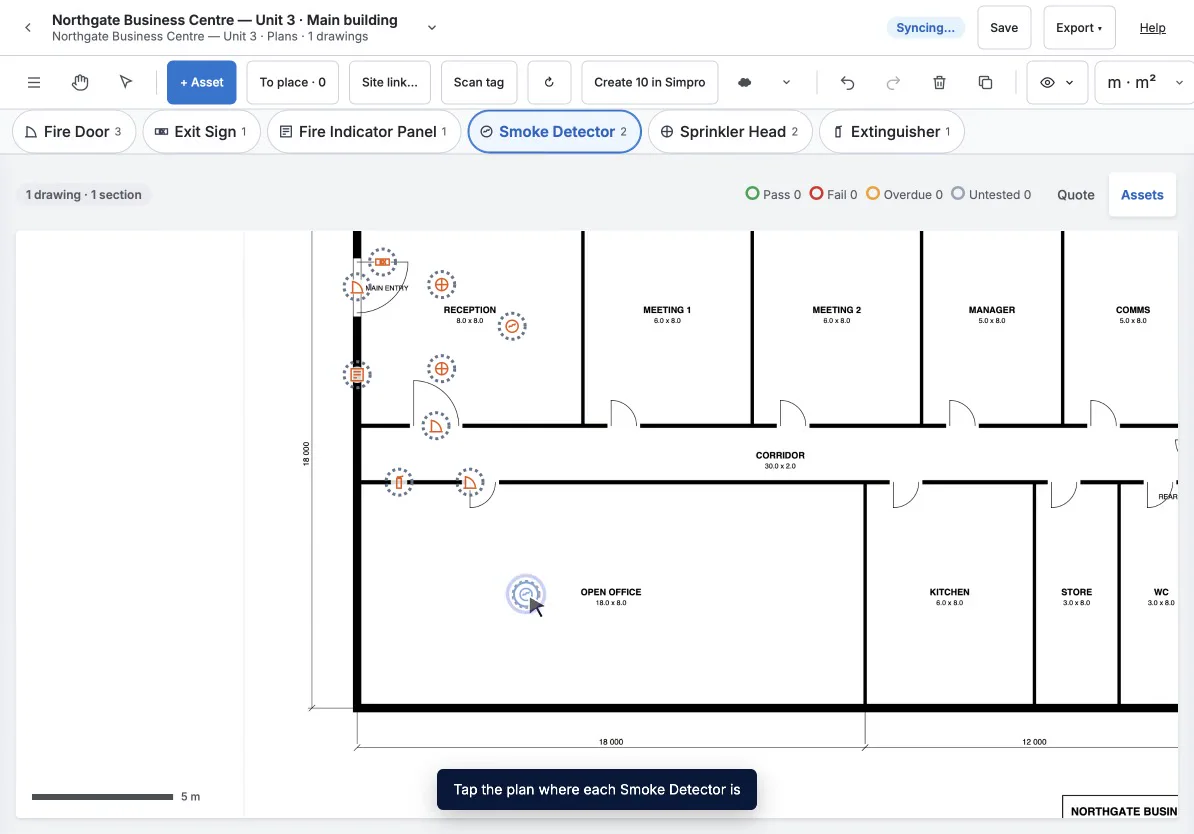
A fire and safety survey
A surveyor's first visit to a site: walk the building once, mark each fire asset on the floor plan as you reach it, then create them all in Simpro in one go.
ElectricalEstimatorsDesktop
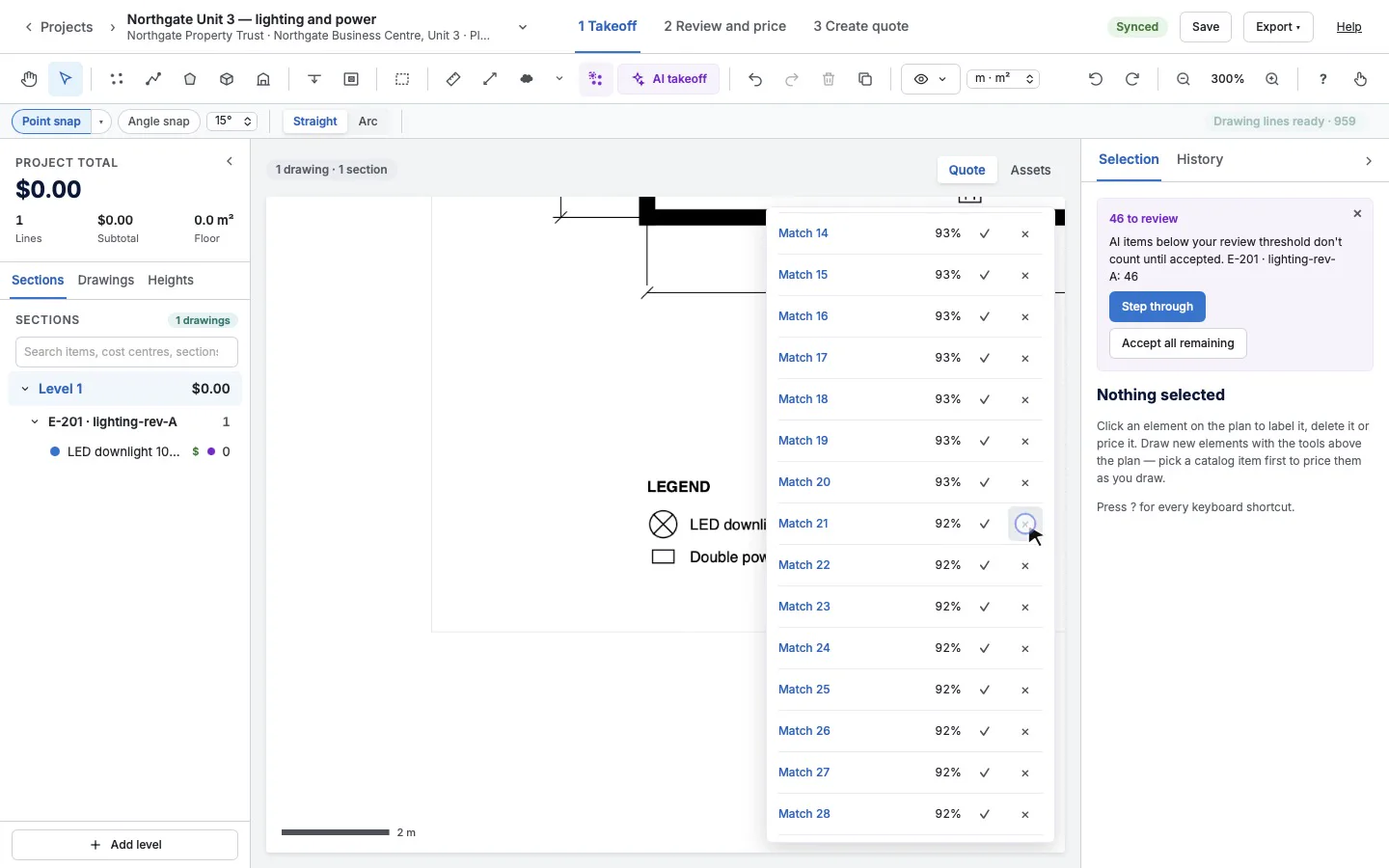
Count a fit-out by symbol
Box one downlight and one power point and every match on the plan is counted for you to check, then place banks of switches with one click each.
Fire and safetyEstimatorsDesktop
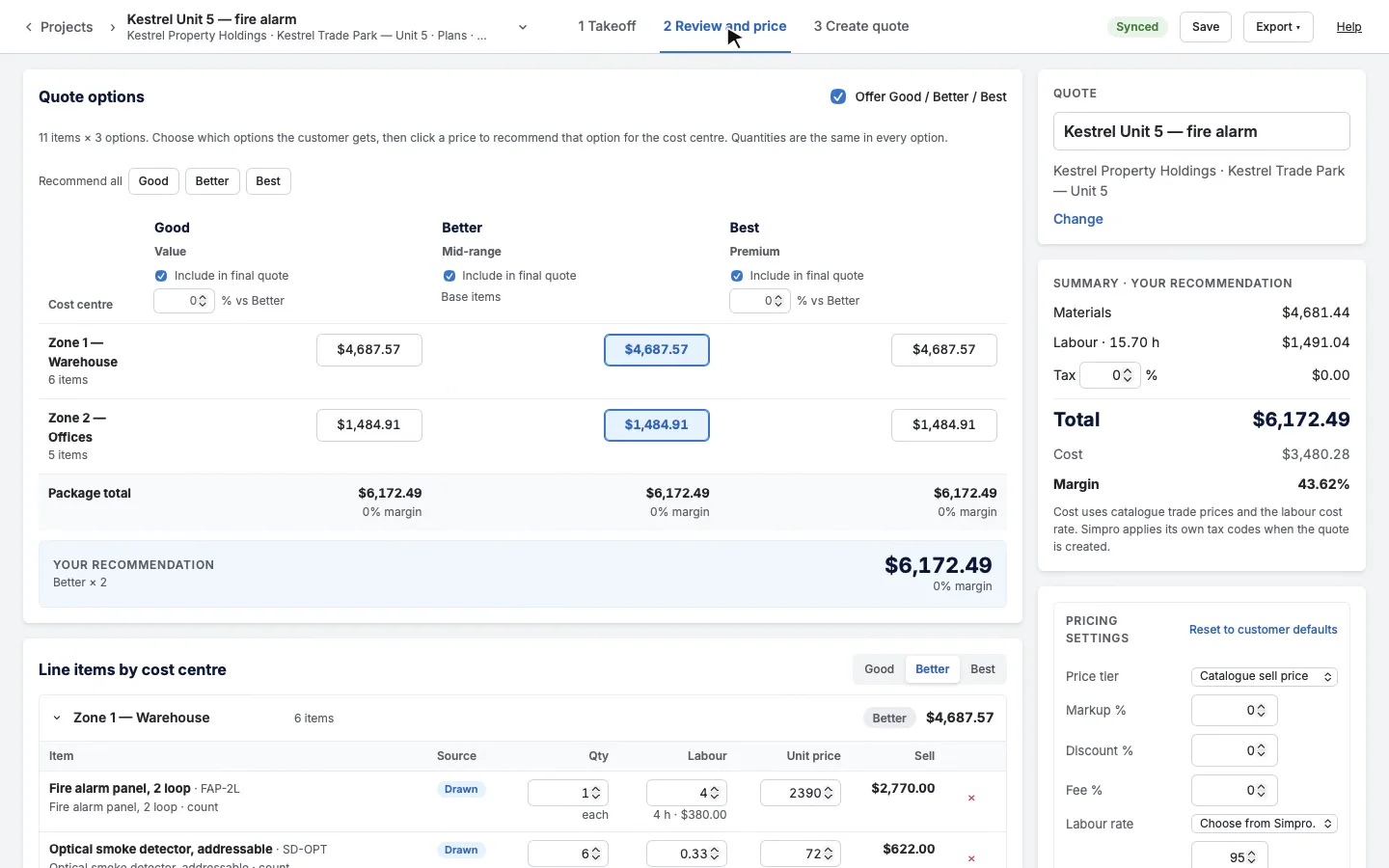
Price a fire alarm installation
A two-storey unit's fire alarm, counted zone by zone from the designer's layout, with the cable loop and its drops, then handed out as a marked-up PDF with a legend.
ElectricalEstimators and pricing editorsDesktop
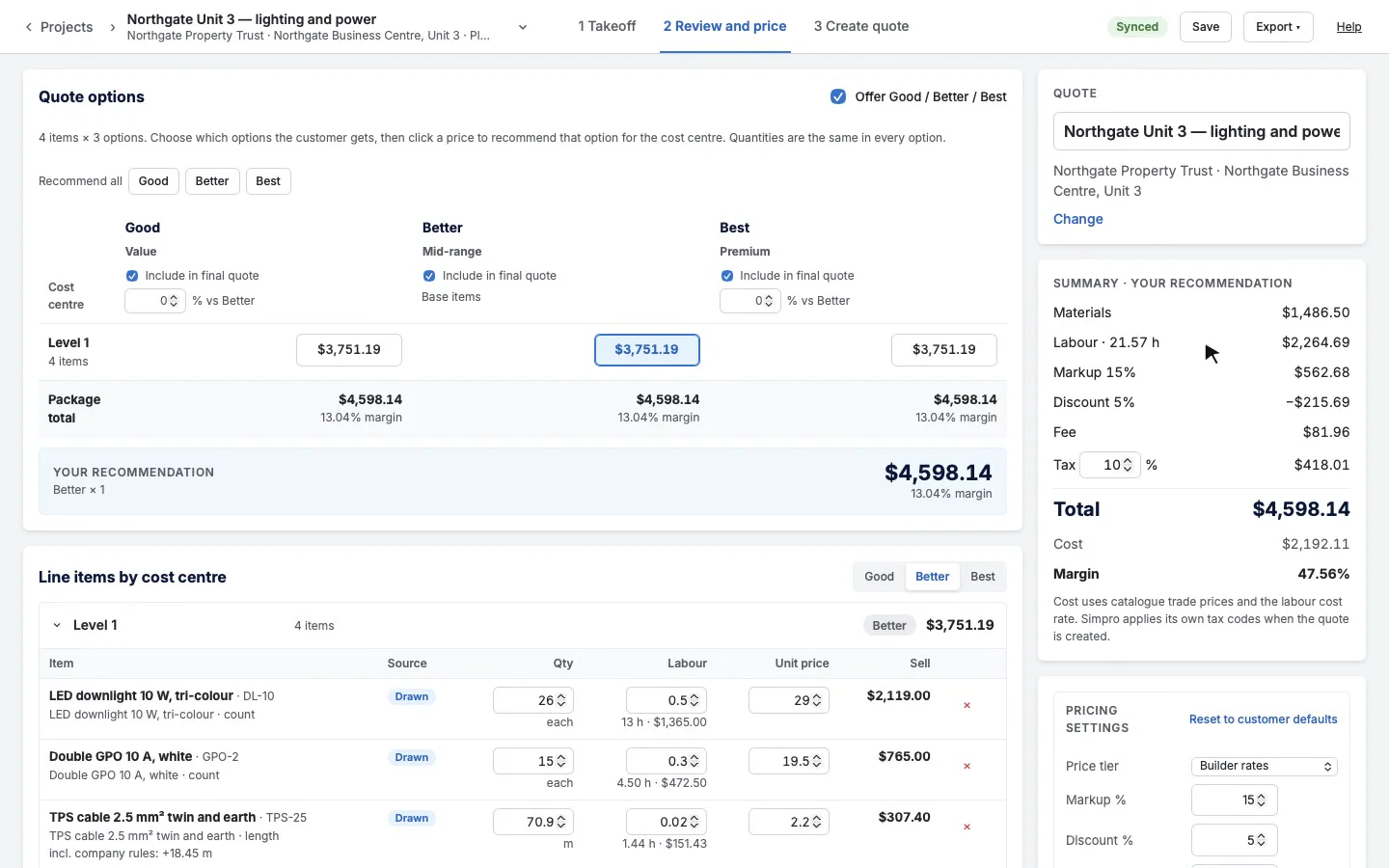
Review and price a takeoff
A small lighting and power job priced step by step: labour, a fit time, your company's cable rules, markup, discount, fee and a Simpro price tier.
Every tradeEstimatorsDesktop
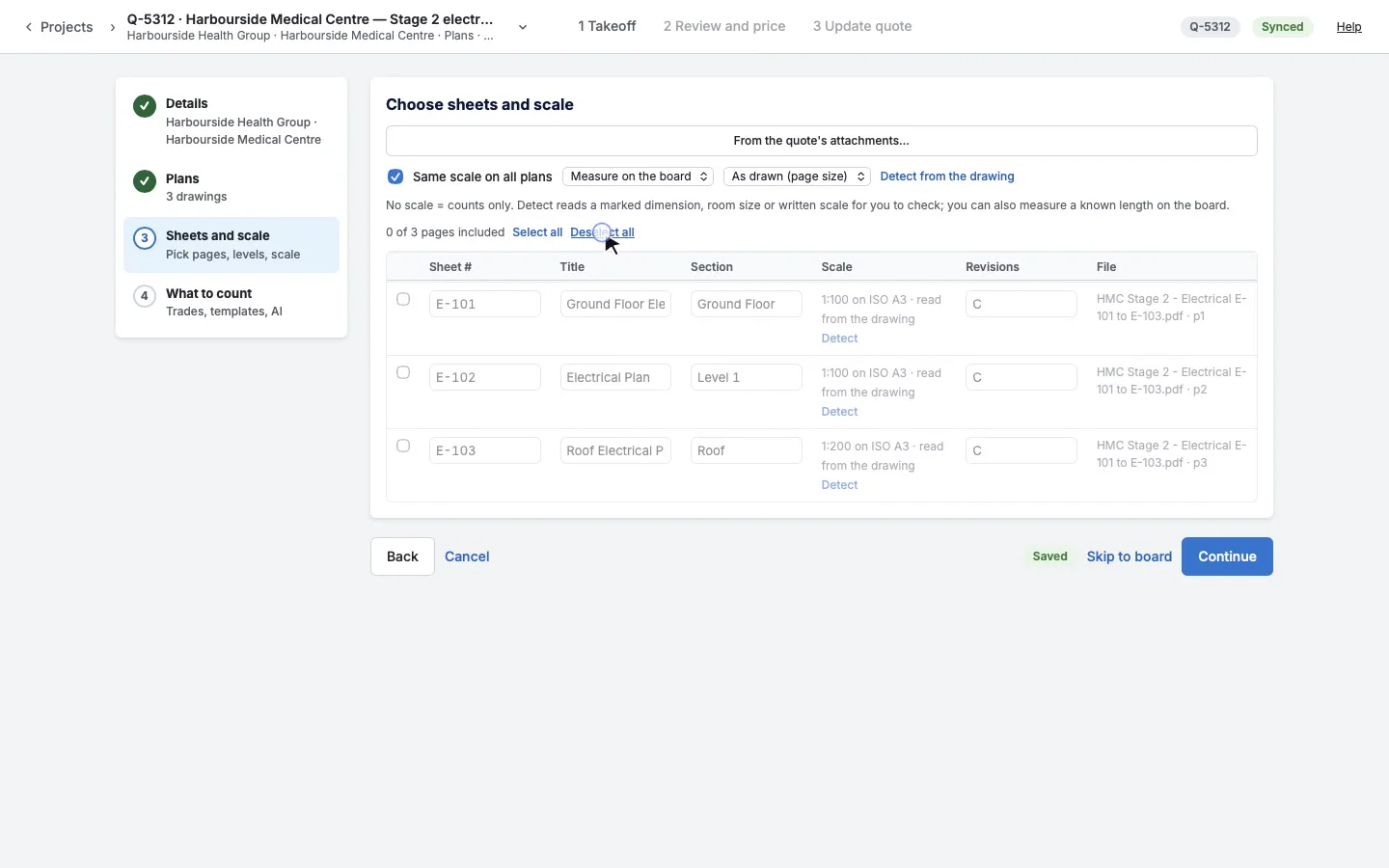
Plans from the quote's attachments
The builder's drawings are already attached to the quote in Simpro. Take them straight from there, choose the pages, and add more pages later from the plan library.
Interiors and liningsEstimatorsDesktop
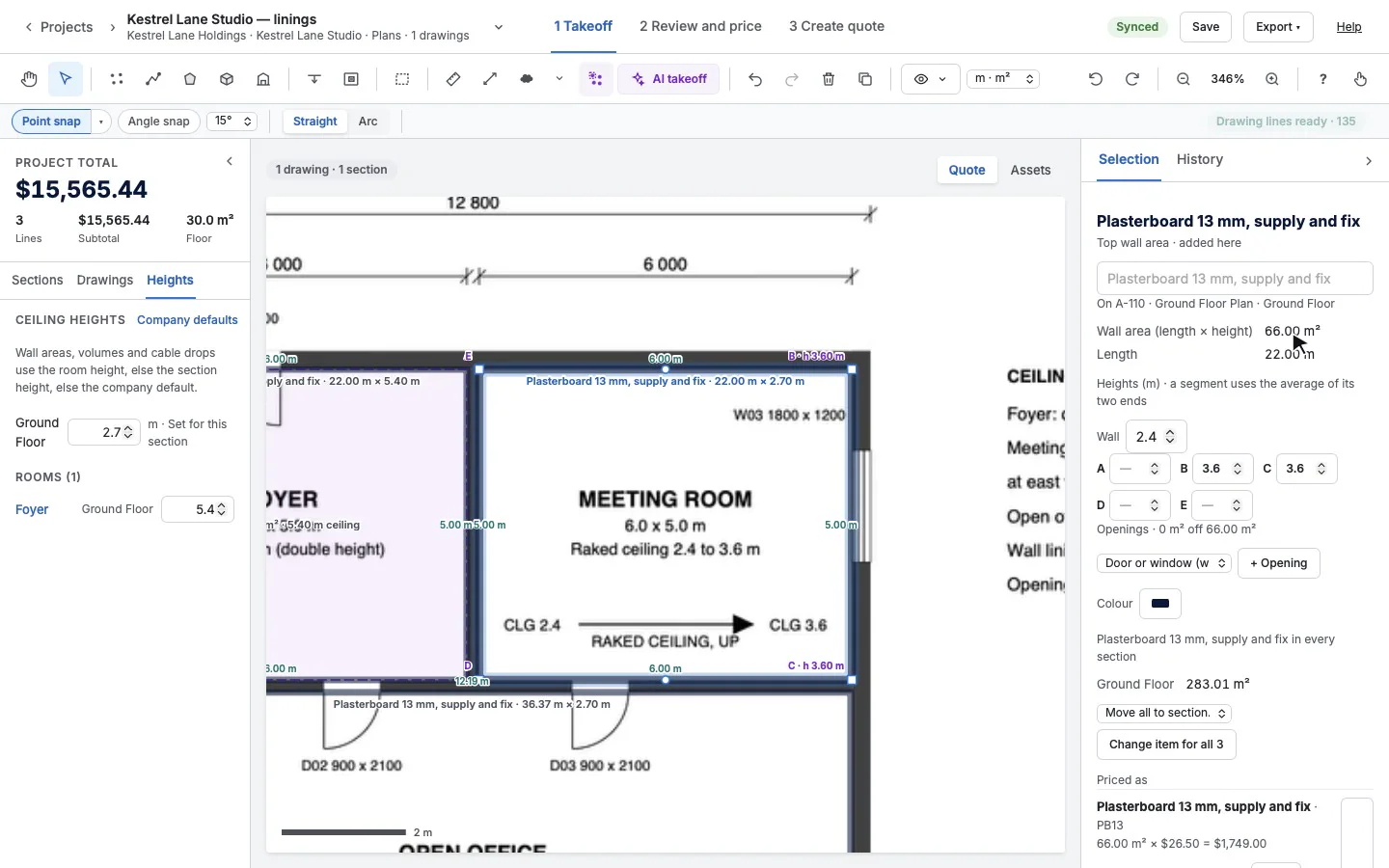
Wall linings under different ceilings
Plasterboard and paint by wall area in a fit-out with three ceilings: a 2.7 m office, a double-height foyer and a raked meeting room, with the doors and windows taken out.
Fire and safetyProject managers and service teamsDesktop
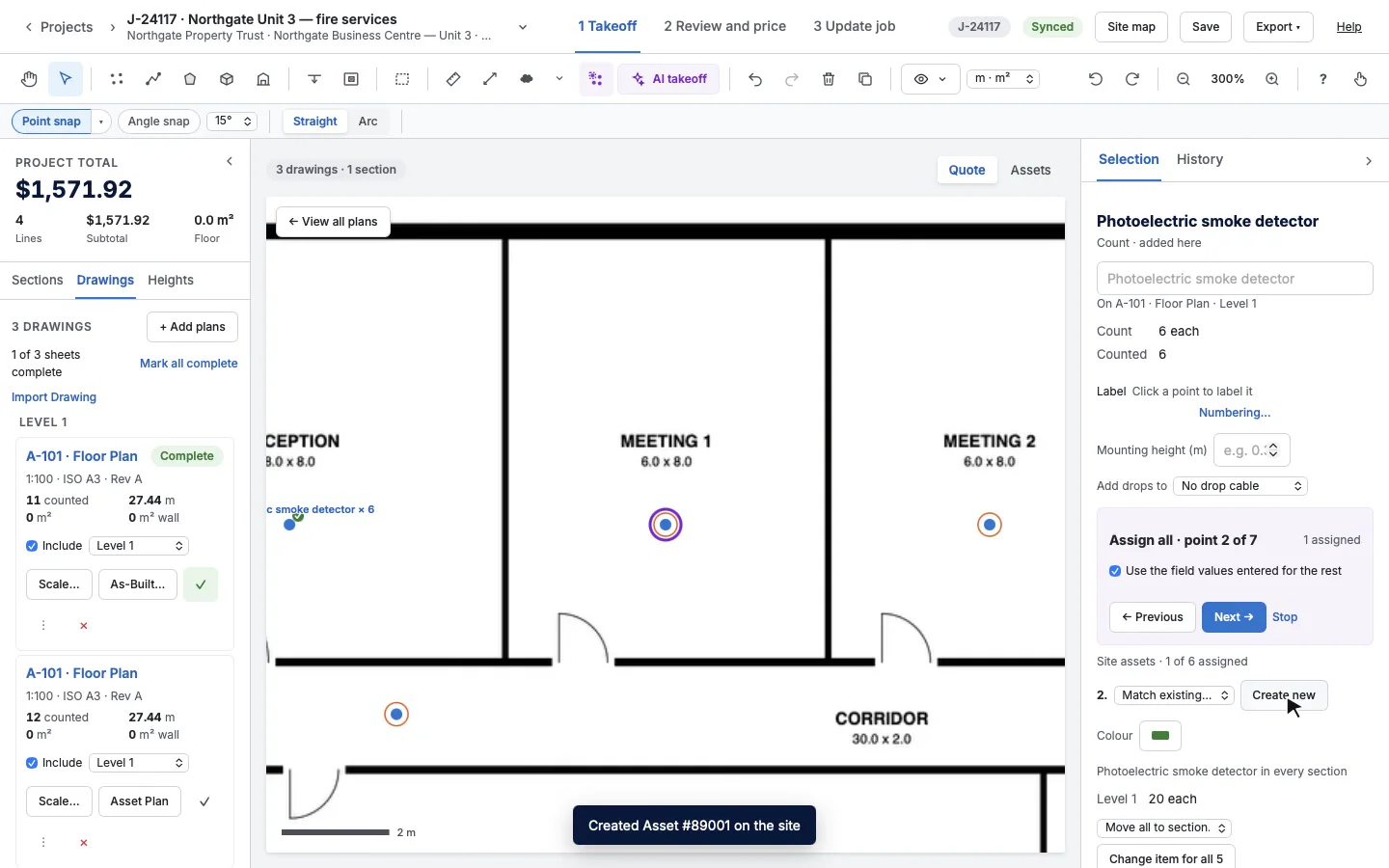
As-Built and assets on a job
The install is done: record what went in on an As-Built, then tie every detector, extinguisher and exit sign to an asset on the customer's site in Simpro.