Markup: text, arrows, clouds, dimensions and pen
Write on the plan: notes, arrows, revision clouds, dimensions, and freehand pen and highlighter. They never add to the quote.
A markup is for people, not for the price. It doesn't appear in the quote, and nothing about it goes to Simpro. It does print on the exported PDF, so the plan you attach to a quote can say what's included, what's excluded and what changed.
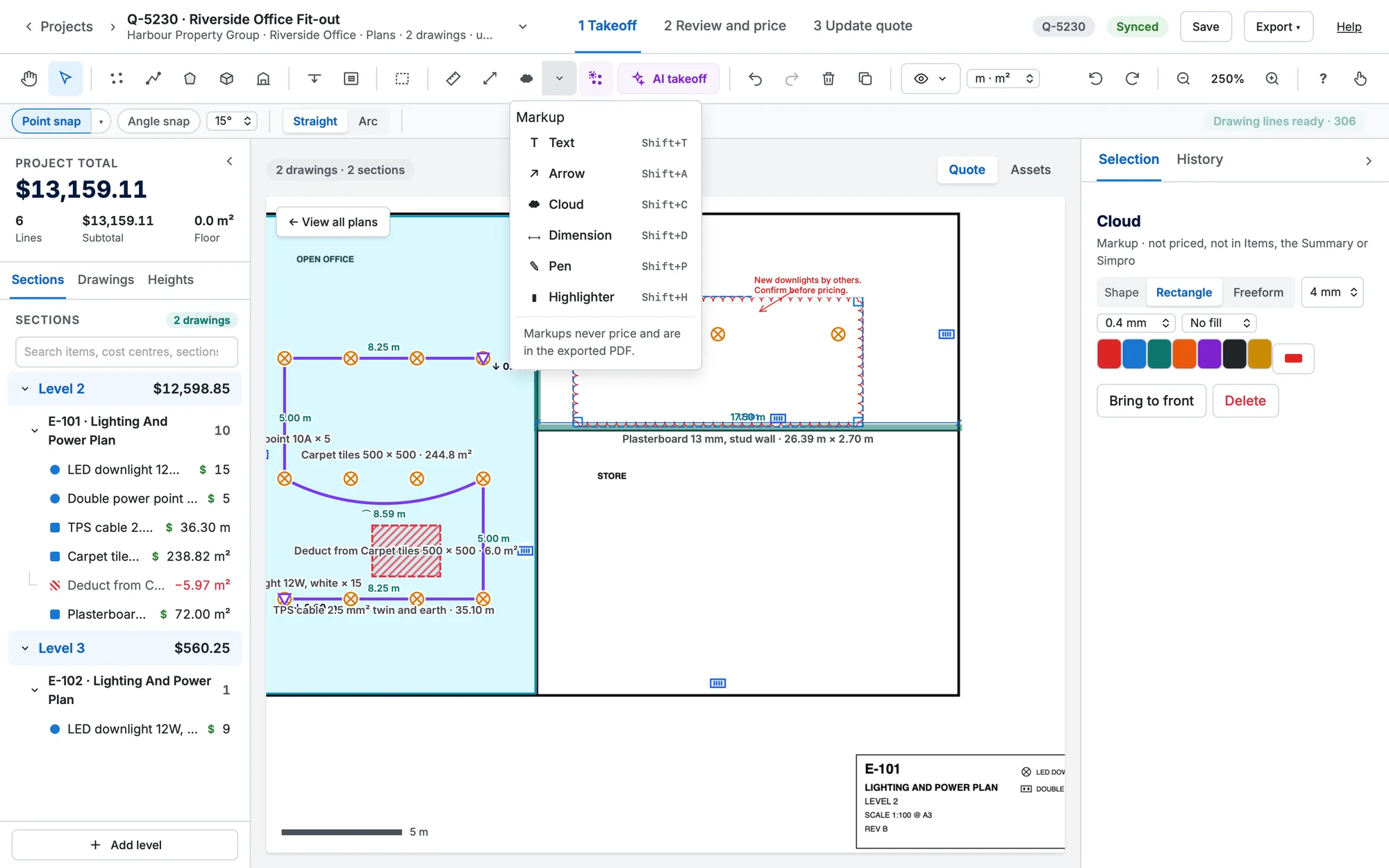
Choose a tool
The Markup button in the toolbar comes after the Ruler. It shows the last markup tool you used (a cloud to start with), so using it again is one click; the ▾ beside it lists all six tools with their keys. The keys are Shift and a letter, because the plain letters are the measuring tools: A is Area, Shift A is Arrow.
| Tool | Key | How to draw it |
|---|---|---|
| Text | Shift T | Click where the note goes, type it (a new line is Enter) and press Add. Its size is in millimetres on paper (2.5, 3.5, 5, 7 or 10), so it prints readable at any scale. Choose the font, bold, italic, alignment and a white, tinted or no background. |
| Arrow | Shift A | Drag from the tail to the head, or click the tail then the head. Hold Shift to keep the angle. Choose an open, filled or no head, a dot or bar tail, a double-headed arrow, the width and a solid, dashed or dotted line. |
| Cloud | Shift C | Rectangle is the default: drag across the area (or click two corners). Choose Freeform under Shape in the options row to click round the outline, then click the first point, use Close shape, or press Enter to close it. The bumps are even along the line; choose their size, the line width and an optional light fill. |
| Dimension | Shift D | Click the two ends, then click again to set how far the dimension line sits from them. It reads the true length from the sheet's scale, in the units you choose, so it shows 920 on a door opening at 1:50 and 1 840 if the sheet's scale is changed to 1:100. A sheet with no scale reads no scale. |
| Pen | Shift P | Press and draw freehand. Hold Shift (or choose Straight) for a straight line. |
| Highlighter | Shift H | The same, wide and see-through, so the plan shows through it. |
The row under the toolbar shows the tool's choices (size, colour, width and so on). They're remembered on this computer for next time. Changing one while a markup you've just drawn is still selected changes that markup too.
Select and change a markup
- With the Pointer, click a markup. It is picked when nothing measured is under the pointer, so a cloud round a count never takes that count's clicks. A cloud is picked by its outline.
- Selection shows its style controls, Edit text… for text, Bring to front and Delete. It says it isn't priced.
- Drag it to move it. An arrow, cloud or dimension has square handles on its points. Copy, paste, duplicate, hide (H) and undo work like any other mark.
- Visible ▾ → Markups hides them all so you can see the plan clean.
In the export
Markups are drawn above the marks. Text is real, selectable text; clouds are true arcs; a dimension is measured again at the exported scale; the highlighter darkens the plan underneath instead of covering it. Untick Include markups in the Export dialog to leave them out. See Export, download and send.
On an iPad
The Markup menu has large rows in touch mode. With Pencil only on (the default once a Pencil has touched the screen), the Pencil draws with the pen and highlighter and fingers pan and zoom. Turn it off with the pencil button for a finger to draw too. See iPad and Apple Pencil.