Mapping assets on a phone
Walk the site with your phone: place each asset under the crosshair, scan its tag and take a photo, even with no signal.
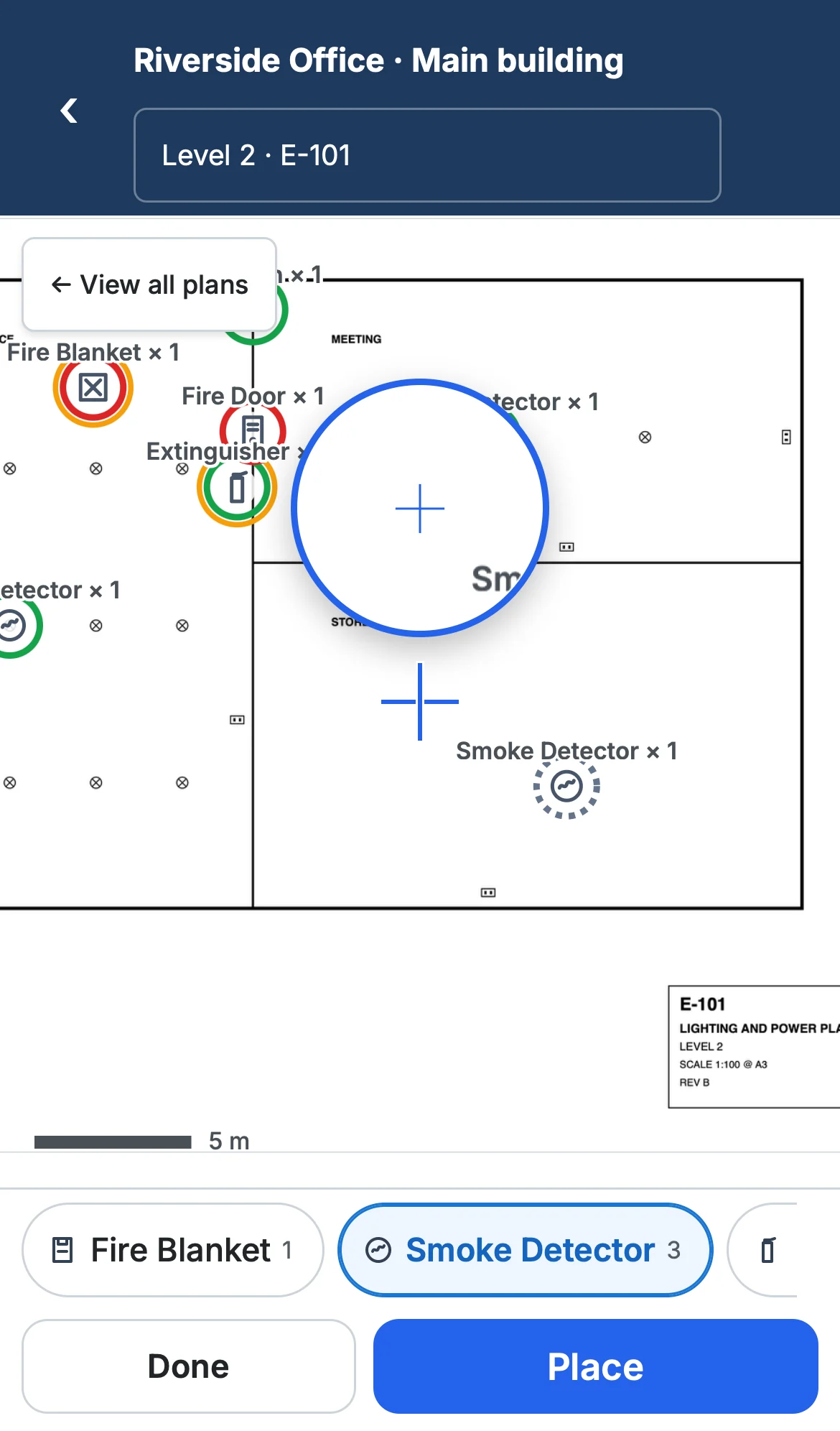
On a phone, a site map opens in field mode: the plan fills the screen, with the site and floor at the top and big buttons at the bottom.
Place an asset
- Choose the floor with the Level… menu at the top.
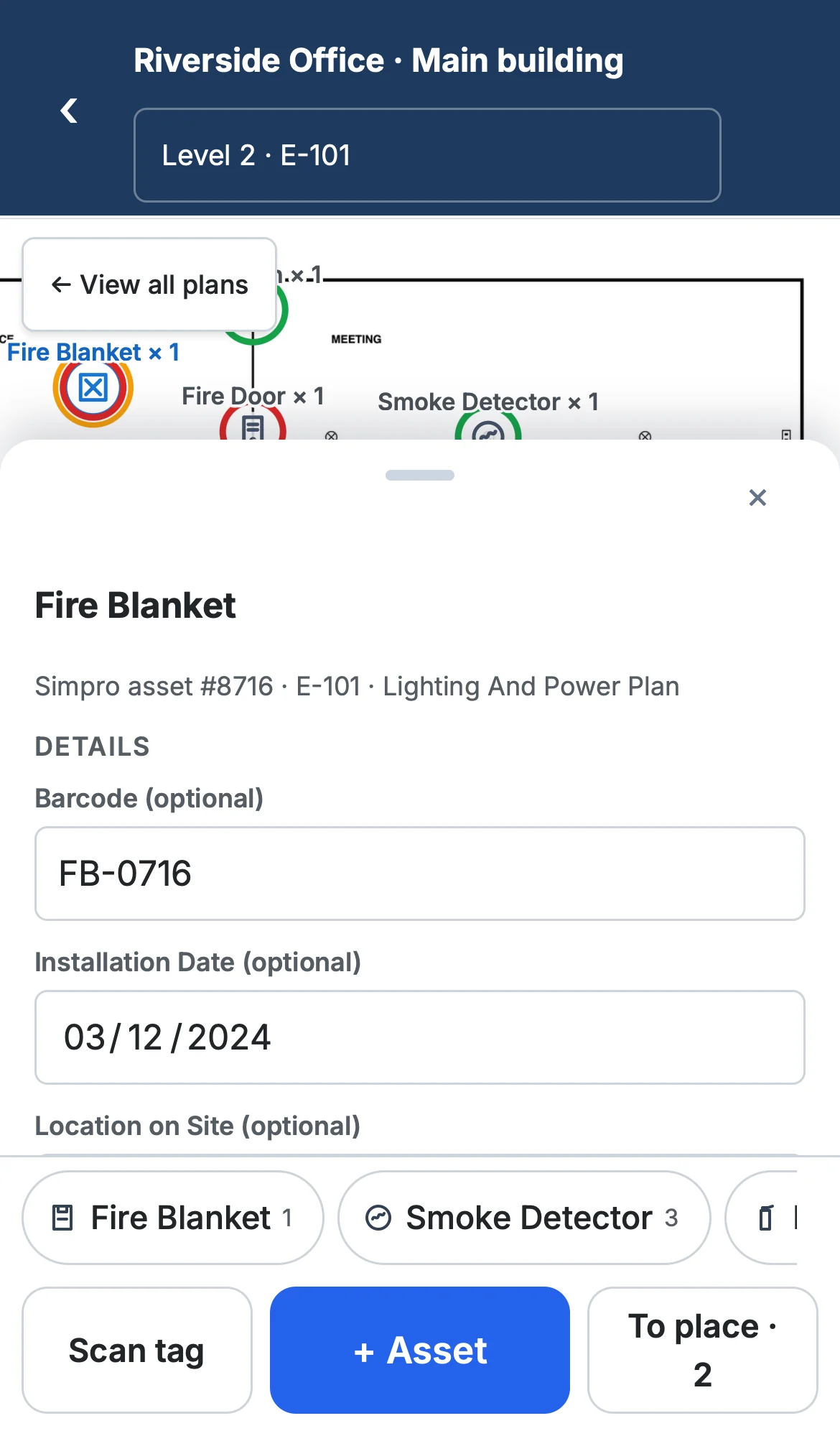
- Tap + Asset, then one of the site's assets or + Create new asset and its type. A type that's already on the map has a button in the strip above the bottom bar: one tap switches to it, even while placing.
- Move the plan with one finger and pinch to zoom until the crosshair is on the asset. The magnifier above it shows exactly where.
- Tap Place. Place the next one the same way, then tap Done.
- Tap the asset to open its details: Create in Simpro or Link existing…, then its fields.
For a line or area (a fire wall), tap Add point at each corner, Undo point to take one back, and Finish.
Scan a tag
Tap Scan tag and point the camera at the barcode or QR code, take a Photo of the tag…, or type it.
- A tag already on the map selects that asset.
- A tag Simpro knows, but not yet on the map, gets you straight to placing it.
- An unknown tag offers a new asset. Its tag goes into the asset's Barcode field in Simpro.
Photos
In an asset's details, Add photo takes or chooses a photo and adds it to the asset in Simpro.
No signal
Keep working. New assets, field changes and photos wait on the phone, and the top bar shows how many ("3 waiting"). They're sent in order when the signal comes back, even after closing the app. If Simpro refuses one, the asset says why, with Try again.