Select, edit, copy and undo
Pick marks, reshape them, copy them between sheets, and change their item in one go.
Selecting
- Choose the Pointer (V), then click a mark to select it. Shift-click adds or removes, including single points of a count.
- With the Pointer, drag on empty space to box-select. Left to right takes what's fully inside (a blue box); right to left takes anything the box touches (a green dashed box). Press Space during a box-select to turn it into a pan.
- ⌘A selects everything on the sheet under the pointer.
Editing
- Drag a selected mark to move it. Arrow keys nudge 1 px (with Shift, 10 px).
- On a selected run, area or room, drag a square handle to move a point, drag a middle handle to add one, or double-click a point to remove it.
- ⌘C copies and ⌘V pastes onto the sheet under the pointer, in the same place. ⌘D duplicates. Quote lines come with the copy.
- With the Pointer, ⌫ deletes the picked point, or else the selection. H hides it on the plan (it still counts).
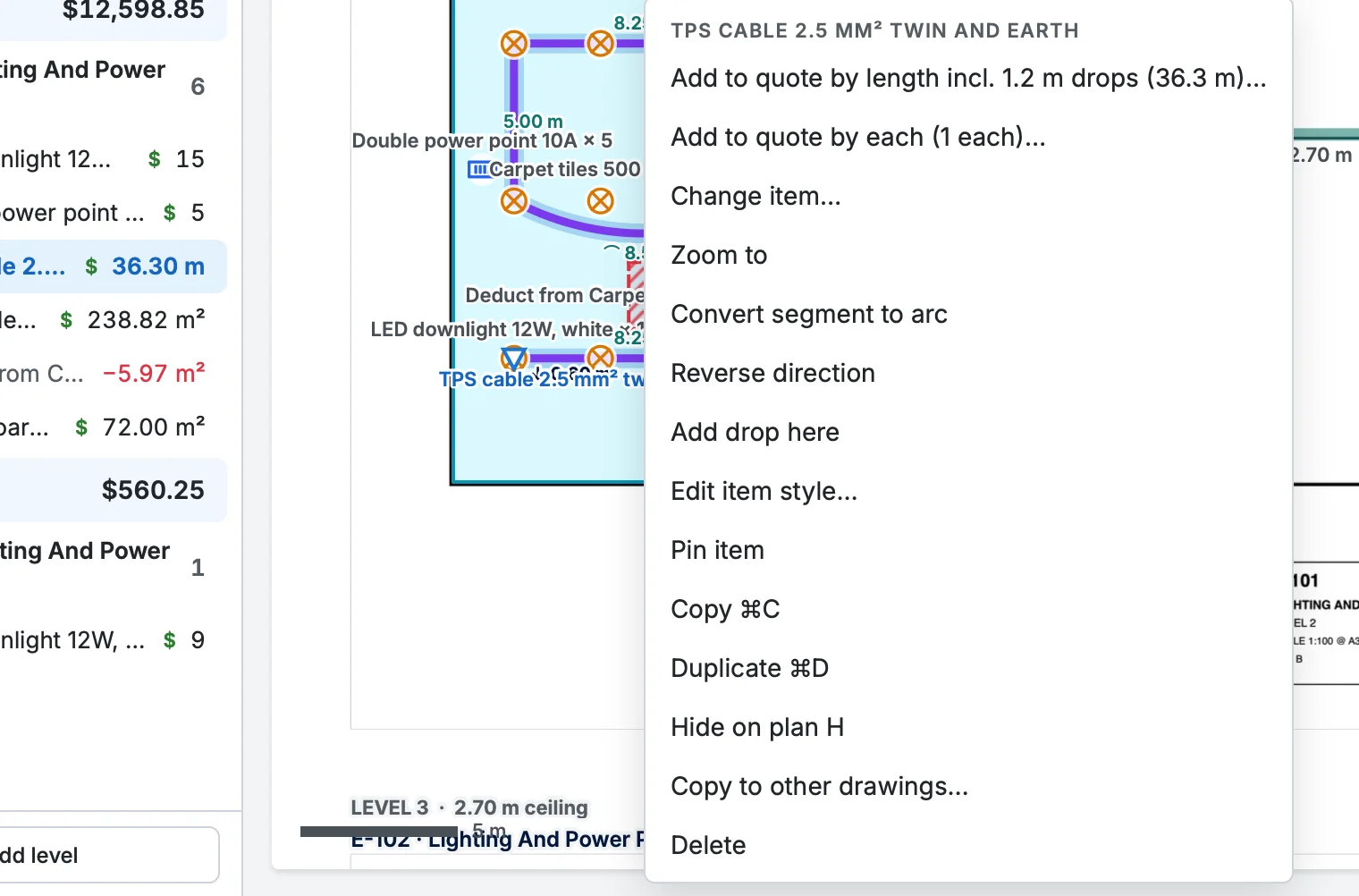
The right-click menu
Right-click a mark, from any tool, for Change item…, Zoom to, Convert segment to arc (or straight), Reverse direction, Add drop here, Edit item style…, Copy, Duplicate, Copy to other drawings…, Hide on plan and Delete. On an Asset Plan, an asset count also has Assign all N.
Copy items to other drawings
When several floors or sheets have the same layout, mark one and copy its items to the rest. Select the marks to copy, or select nothing to copy every item on the drawing in the middle of the view. Then click the copy icon in the toolbar (next to Delete), Copy to… on the touch action bar, or right-click a mark → Copy to other drawings….
- Tick the drawings to copy to, or All drawings. They're listed by section; a sheet that's complete can't be ticked until you reopen it.
- Click Copy to n drawings. Each item lands at the same place on the page of each drawing, and a message says what was copied, for example “Copied 12 items to 3 drawings”.
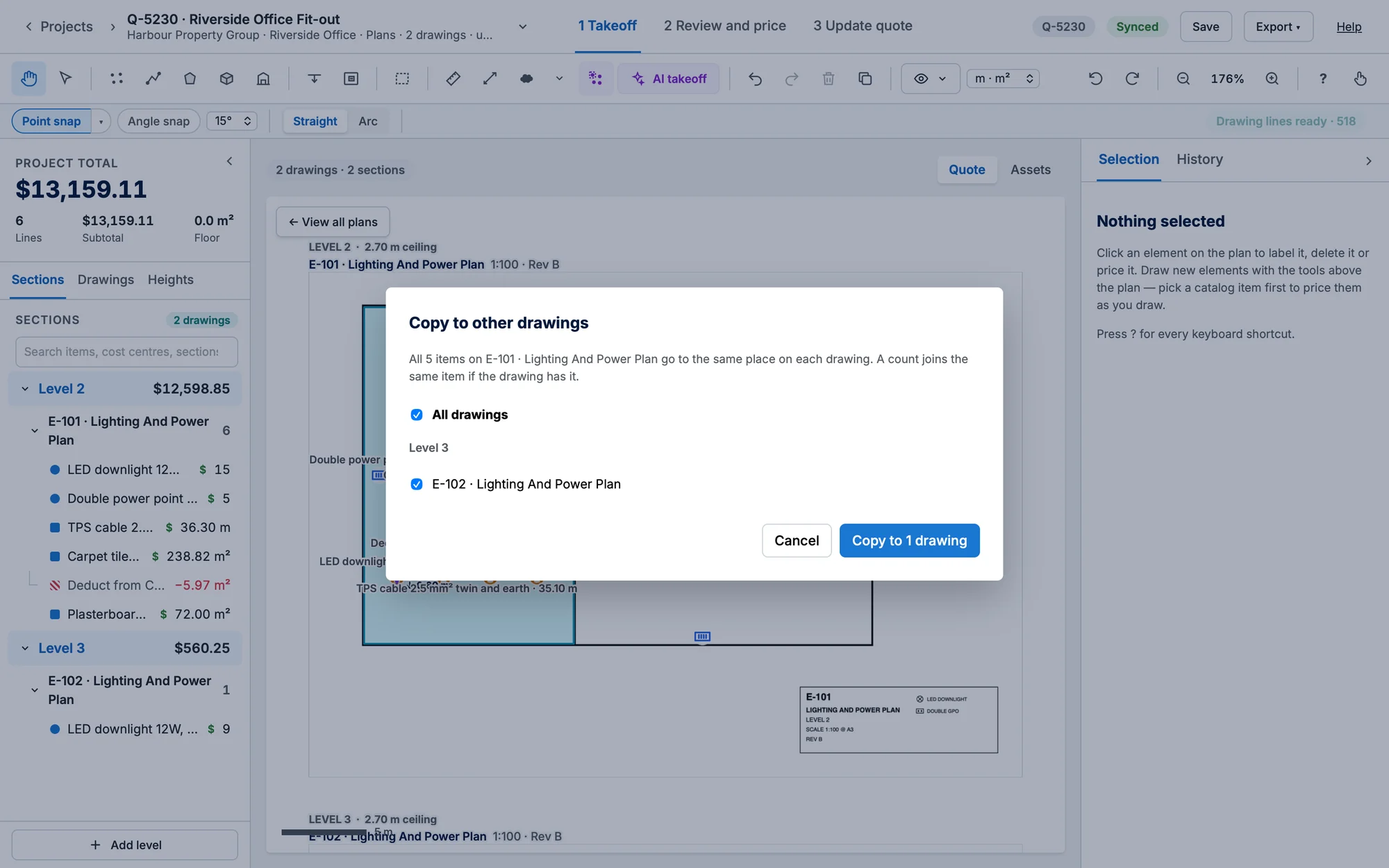
- A count of an item the drawing already has joins it: its points are added and the item's count goes up, with no new line. Labels take the item's next numbers, as with Paste.
- Runs, areas, volumes and top wall areas come with their quote lines, so the same item adds up across drawings. Deductions come with their area.
- The copies are new marks: moving, changing or deleting one doesn't touch the original.
- Markups and rooms aren't copied.
On a site map the same button copies assets: each copy is a new asset of the same type, not yet linked to Simpro, and the type's row on that drawing counts it. See Site asset maps.
Change the item for many marks at once
Select the marks, right-click and choose Change item for N selected…. In a mixed selection, each item is only offered for the marks it fits, so a run never gets a per-each item. Search the catalogue for these N… finds a new one.
Undo
⌘Z undoes and ⇧⌘Z redoes, up to 200 steps.