Wall areas, heights and openings
Measure wall area from a plan view, with heights that vary and openings taken out.
- Press W (Top wall area) or choose a wall-area item.
- Click along the wall from above.
- Double-click or press Enter to finish. Wall area = length × height.
To go all the way round a room, click the first point again (the tag says End) or use Close shape: the wall runs back to where it started, so the last side is counted too.
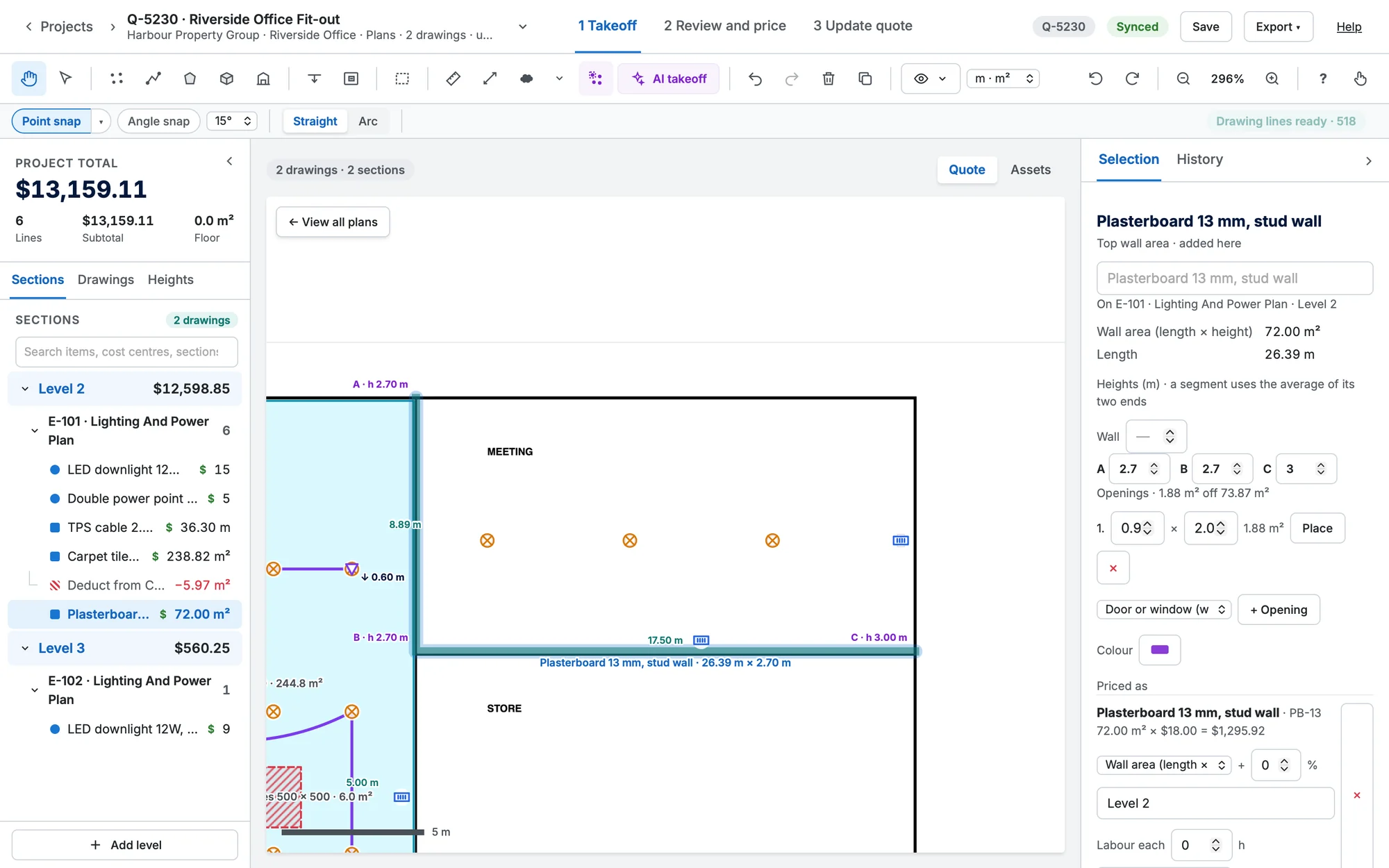
Heights
The height comes from the room, else the section, else the company default. To set your own, use Heights in Selection: a Wall height, or a height at each point (A, B, C…). A segment uses the average of its two ends, so raked walls work. The letters and heights show on the plan while it's selected.
Openings
+ Opening takes out a Door or window (w × h), an Area or a Trapezoid. Place anchors it on the wall: click where it is. Openings can't be more than the wall's area.